How to use:
The FILTER Button
The BLANCO Button
The UPLOAD Button
General Site Info
Weaselware:
Instructions
Advanced
Life advice:
Passwords
How to do:
The Platner Edge
A Drainboard
coming soon:
One weird trick to keep pieces from moving while milling sinks.
Suction cup companies hate it!
Also, TOP 10 ways to make banana bread from dried up old banana peels.
#8 will BLOW YOUR MIND
I'm actively working on Weaselware and turning it into a full blown CAD editor. These instructions and the advanced instructions will go out of date faster than I update them.
Do your templaters put absolutely #%@#ing everthing on the same God damn layer?
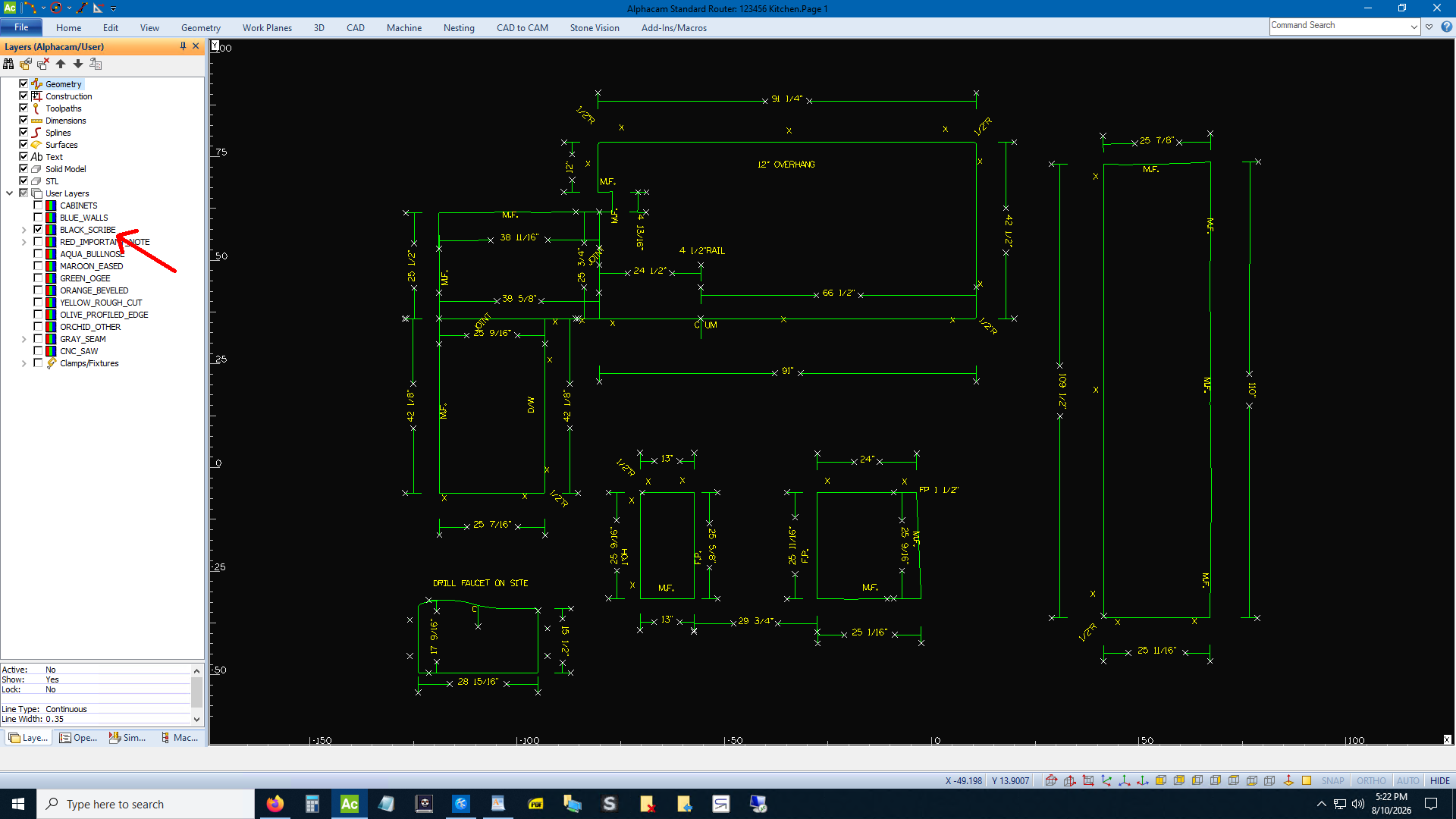
Do you spend hours every week going like this?
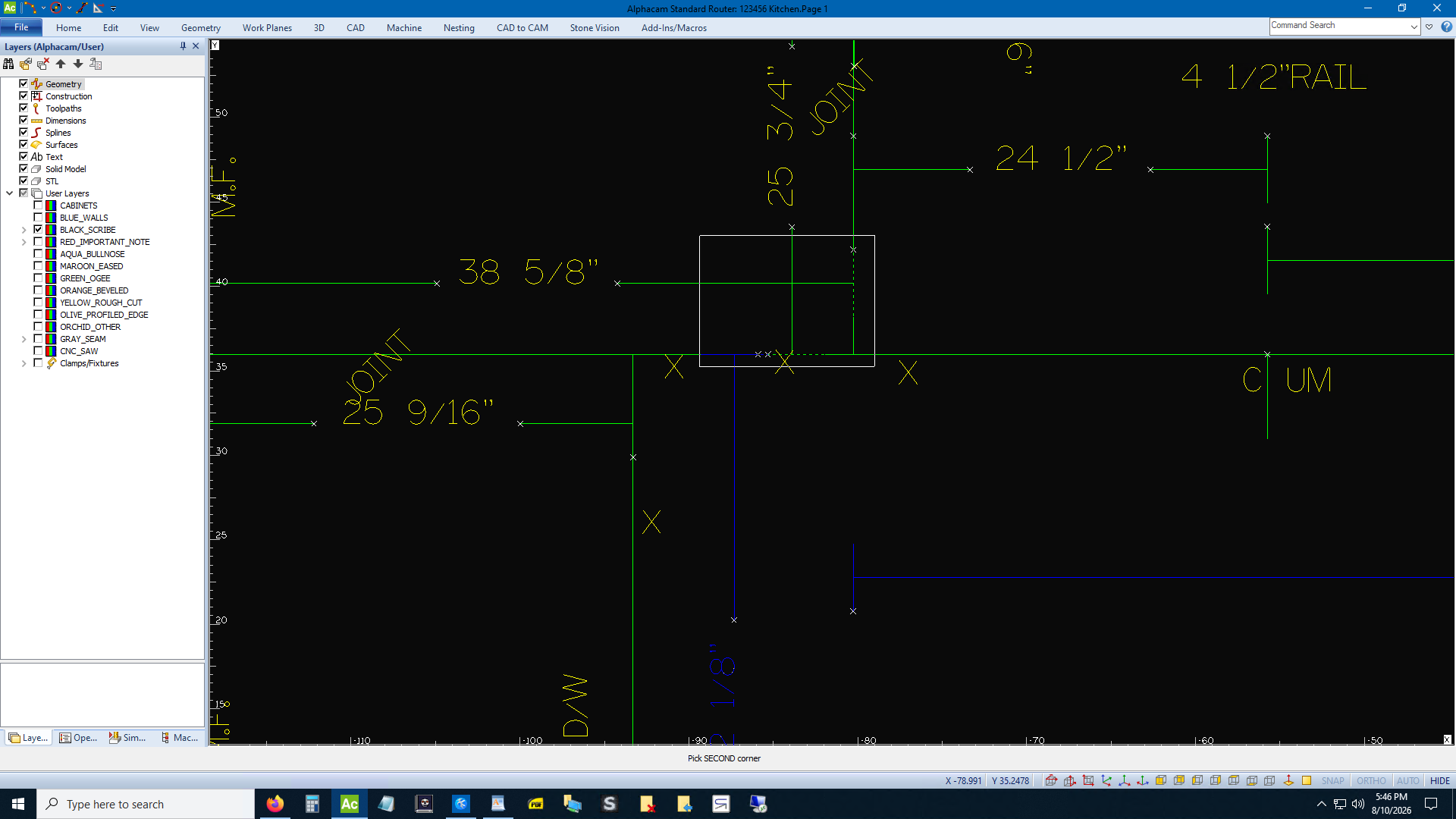
Put that down. There's a better way!

Click the Weaselware link at the top left of the screen. Smash the website to one side of the screen. Open your file manager to the folder containing the offending LT DXF file. Drag it in and drop it.
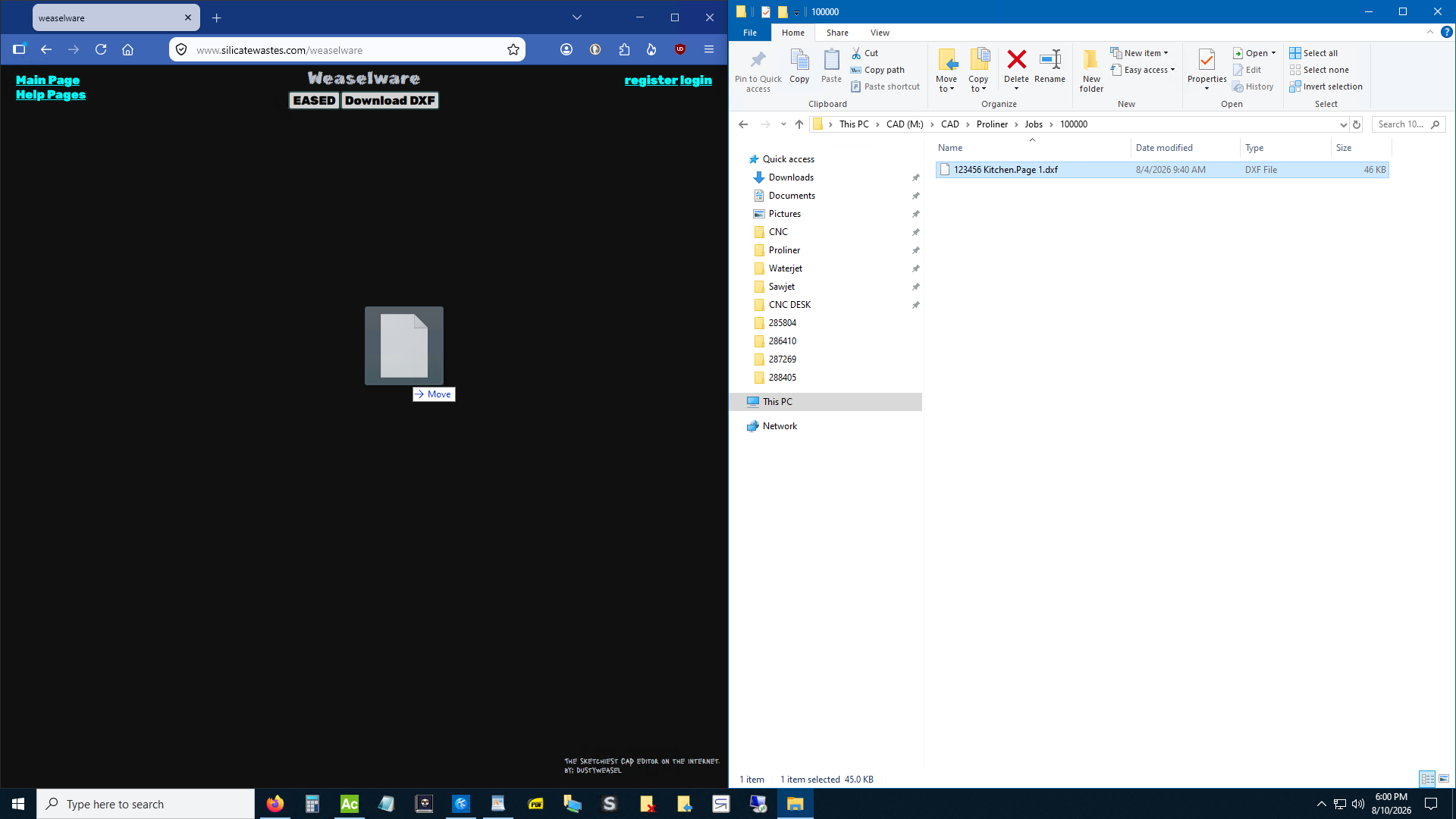
Holy shit!
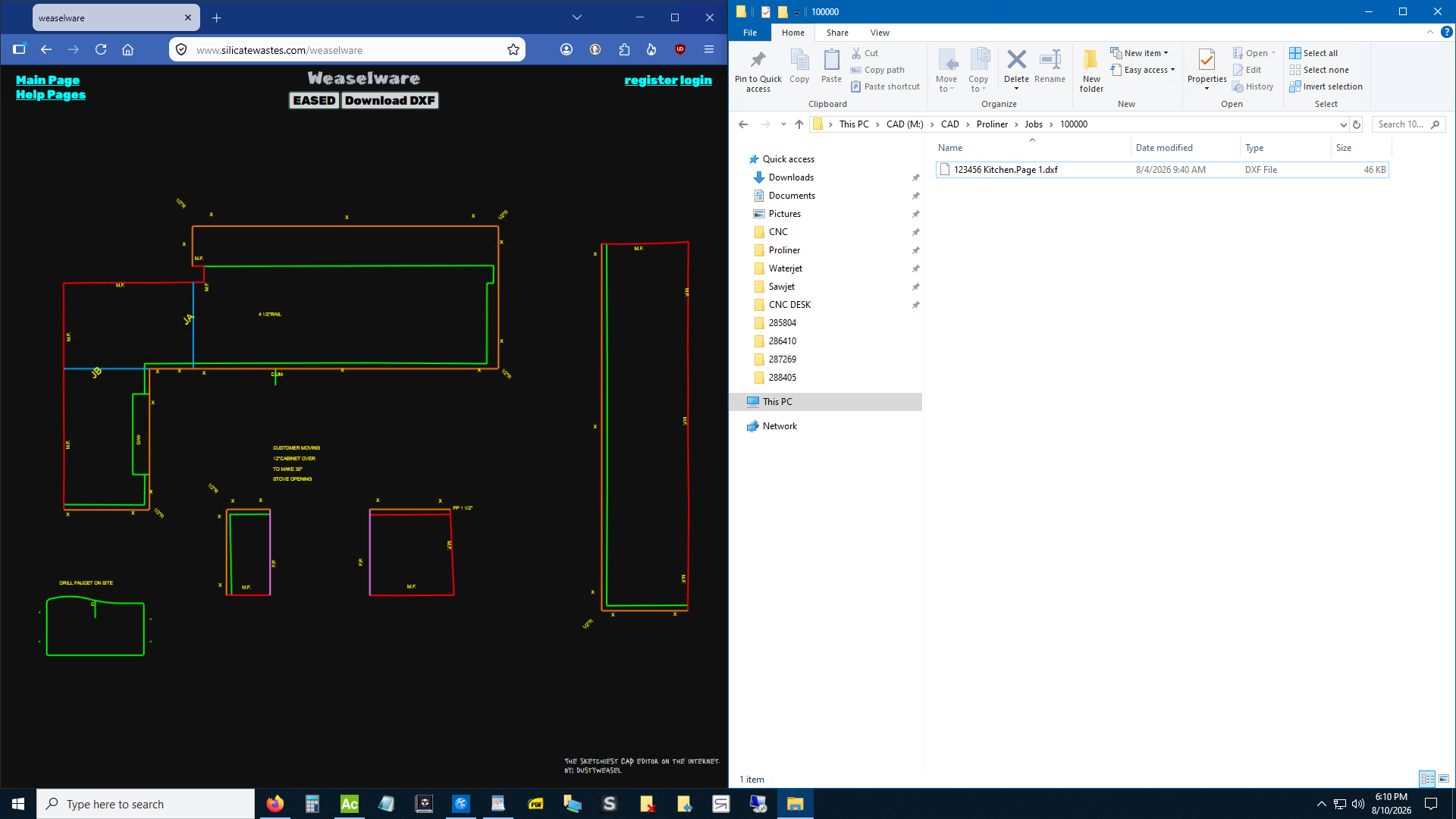
It knows what dimensions look like and deletes them, regardless of what layer they're on. (At least where I work. If it doesn't delete your dimensions mabye I can improve it.) It doesn't care what layer they put their joints, profile, walls, or flat polish edges on. It sets the layers based on the locations of key texts like "SEAM", "JOINT", "X", "F.P.", or "FP". Label the walls however you want, the software figures it out without those texts. Be sure to put the Xs and FPs on the outside of the piece. Otherwise you'll end up with green countertops and pink cabinet lines.
Is it an Eased egde job? Do you use the same tooling on eased edge that you use on flat polish edges? Hit the "Eased" button.
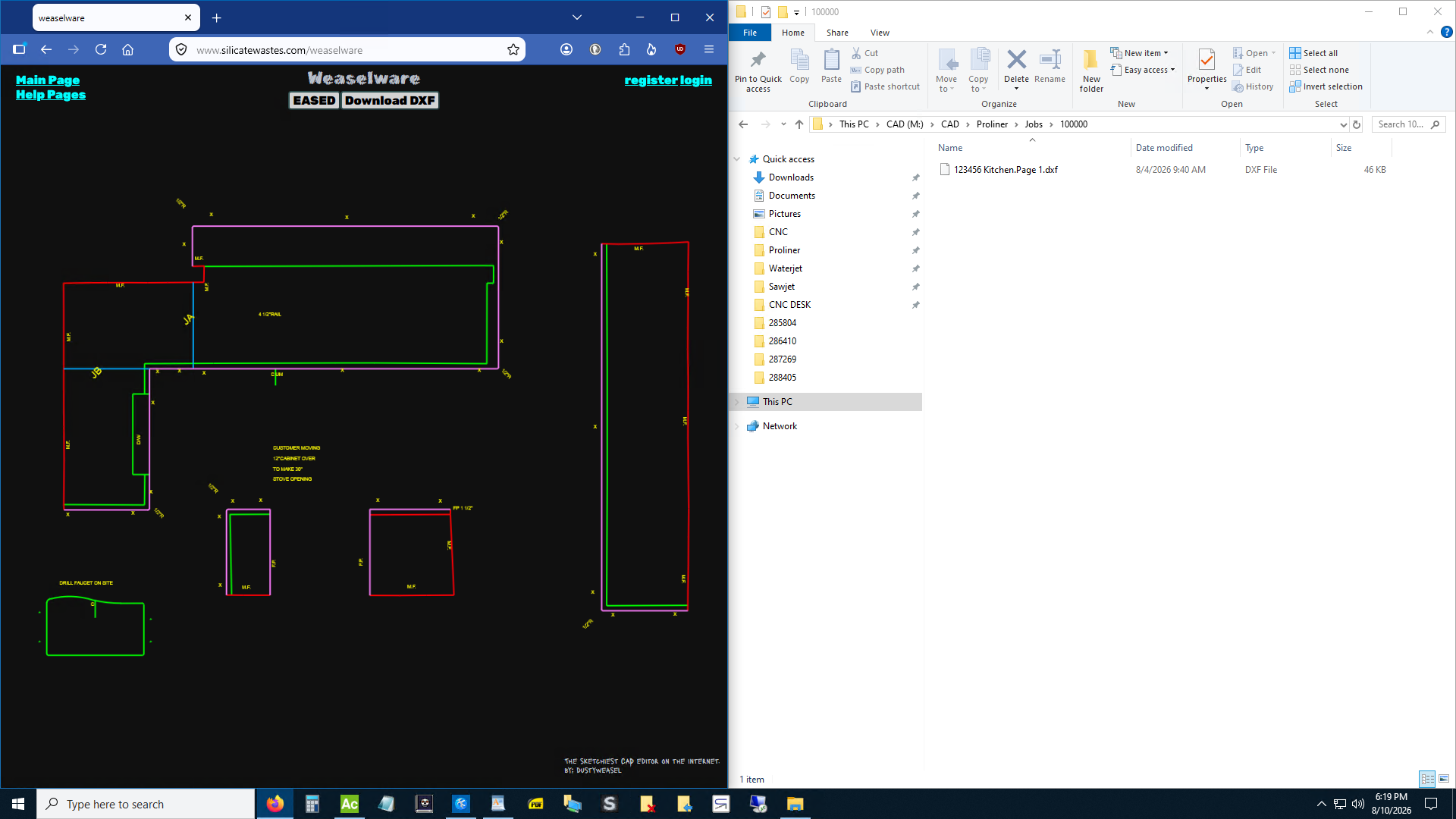
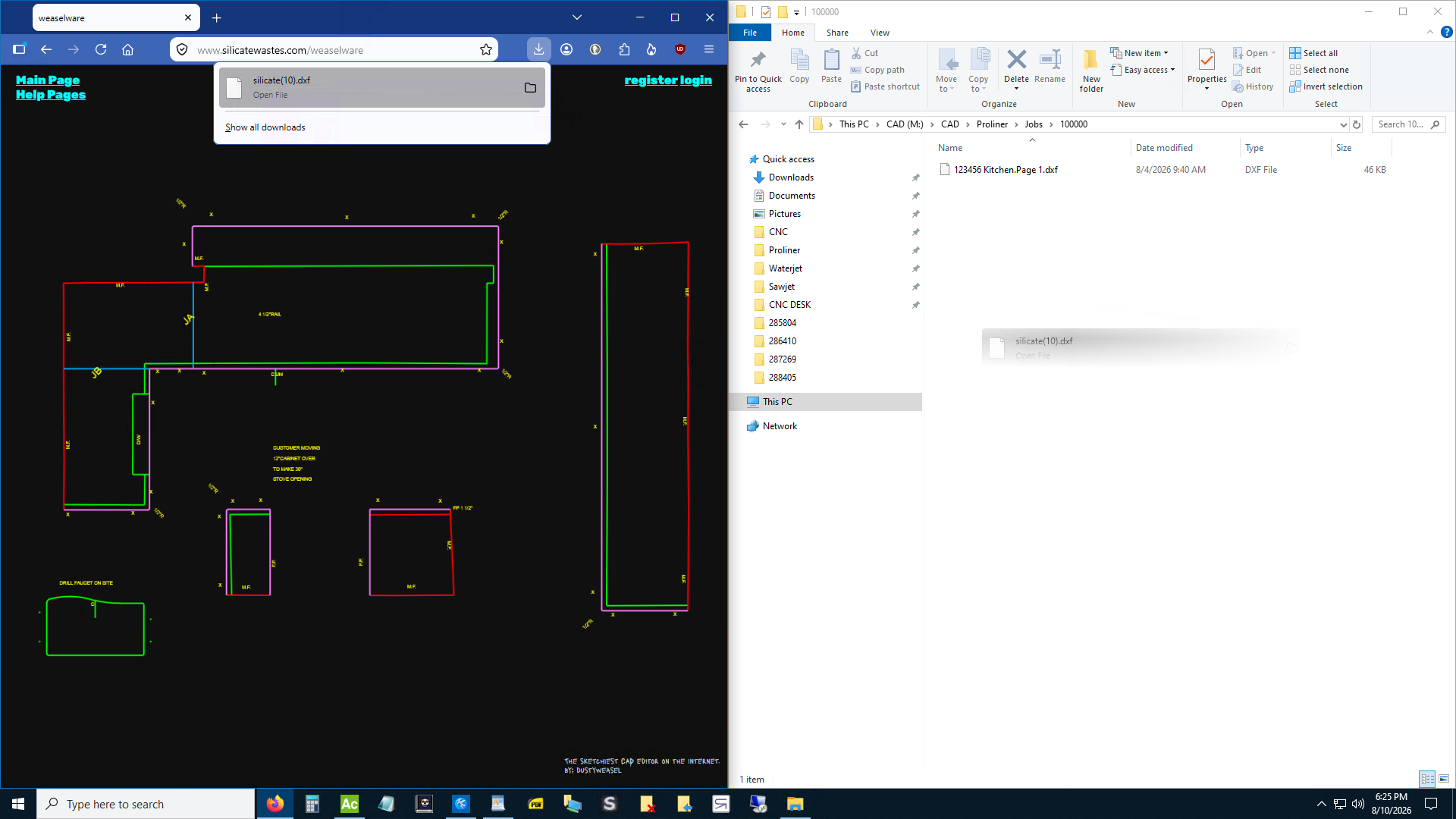
What are you waiting for? Download that shit before I put it behind a paywall. Hit the "Download" button, grab it from the downloads panel and drag it back to your folder in file explorer.
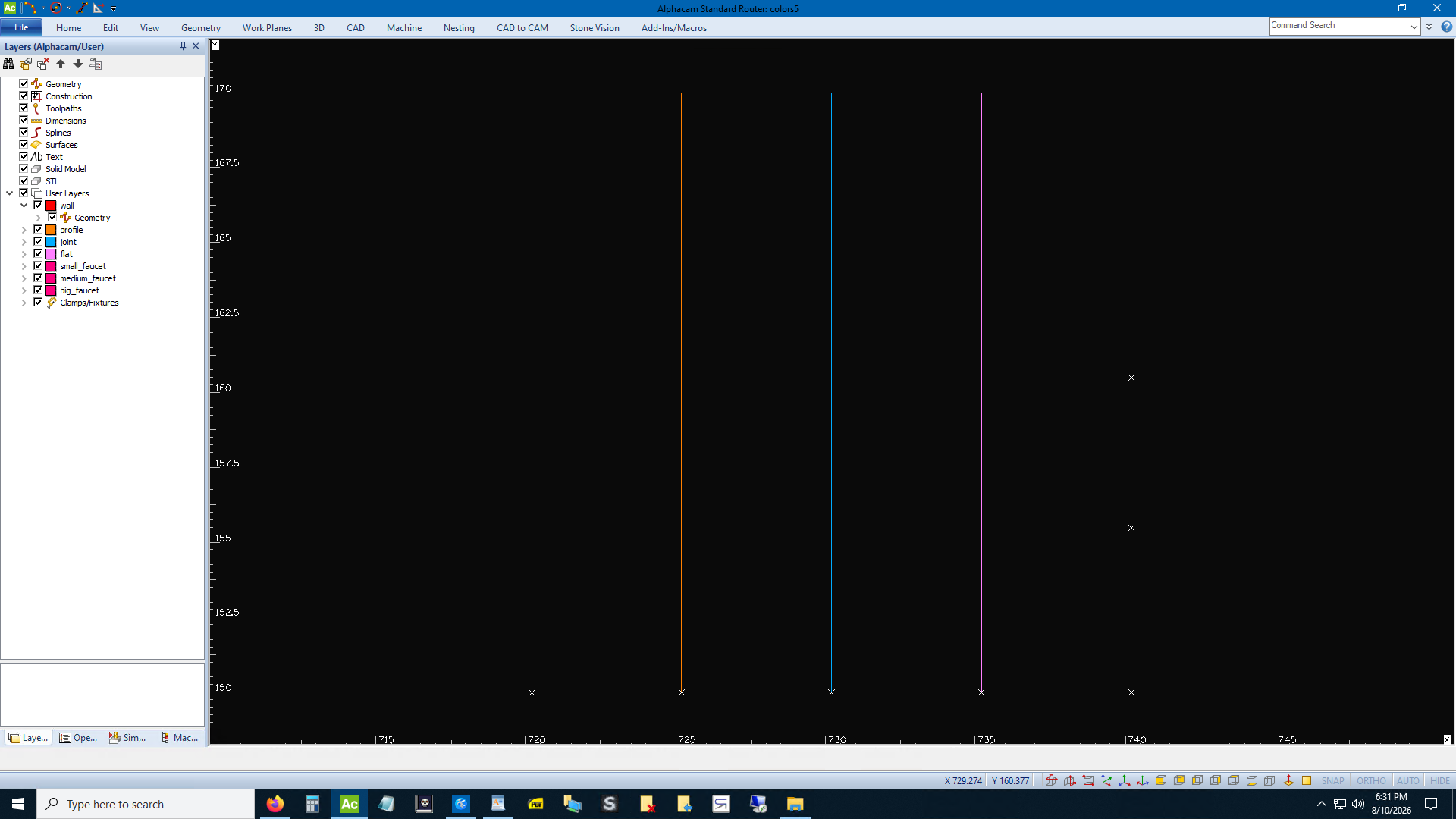
Create a file in AlphaCAM called colors.ard or something. Create those seven layers and color them however you want. Save it somewhere.
Now whenever you start a new job insert that file first.
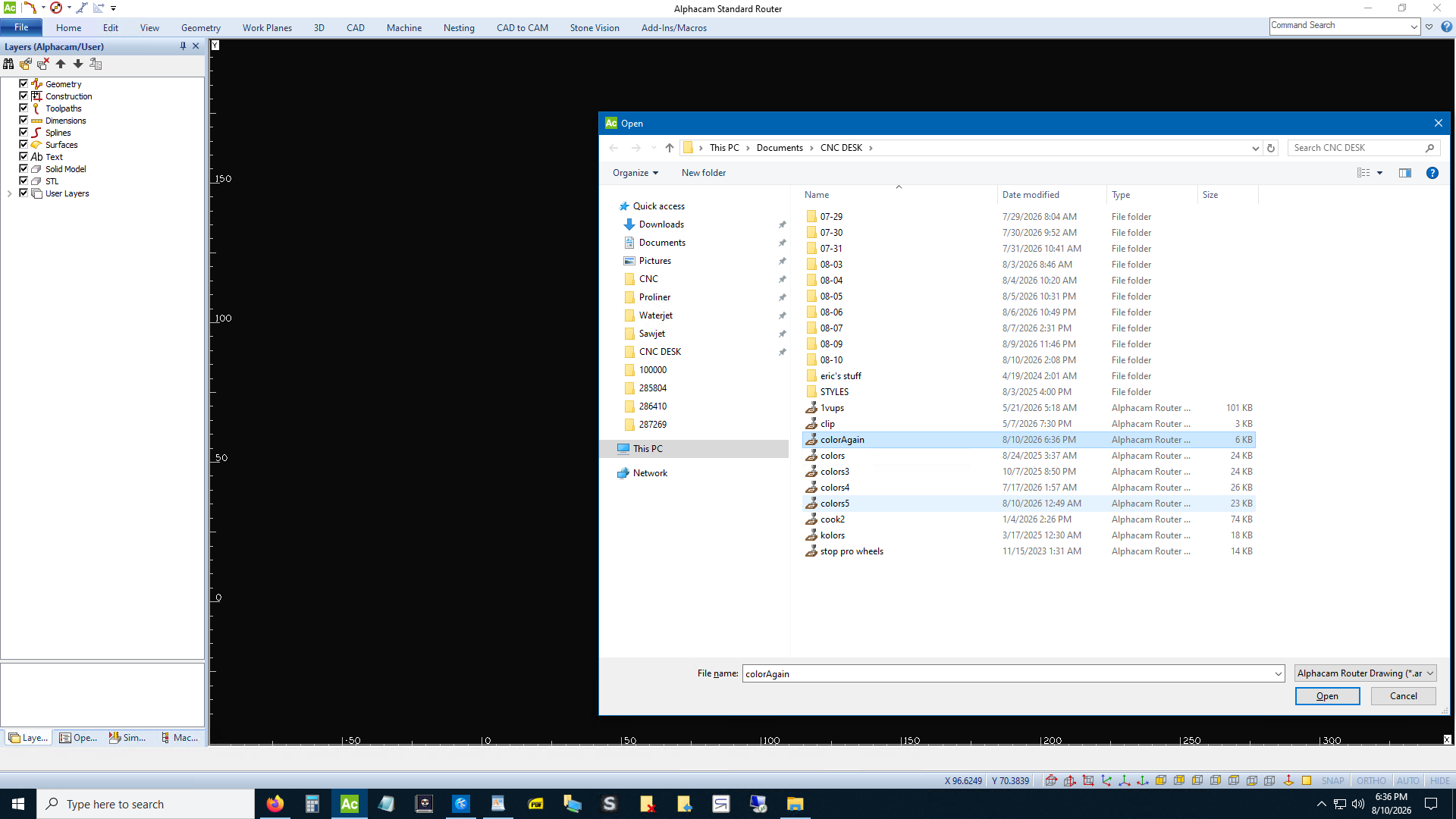
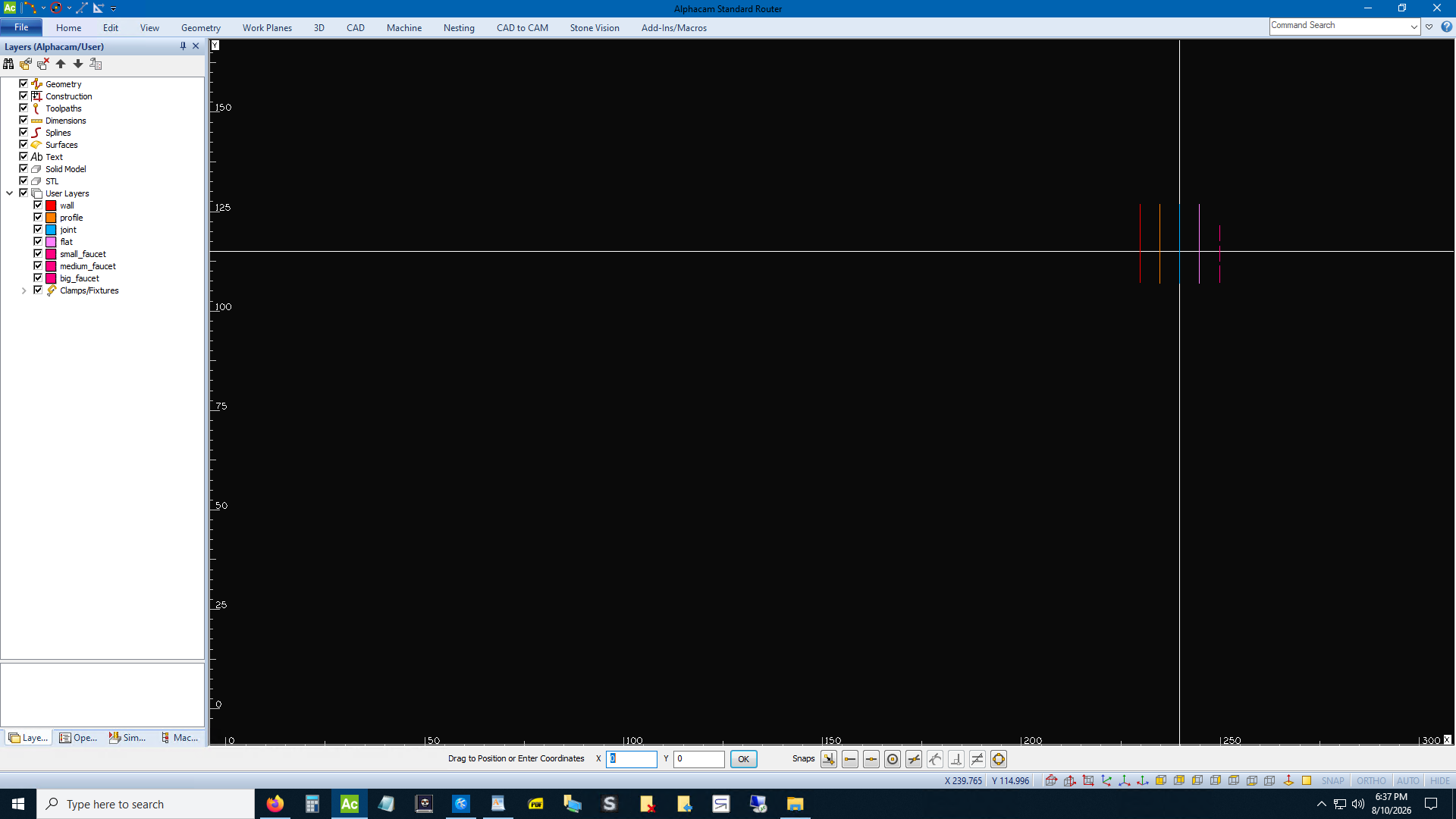
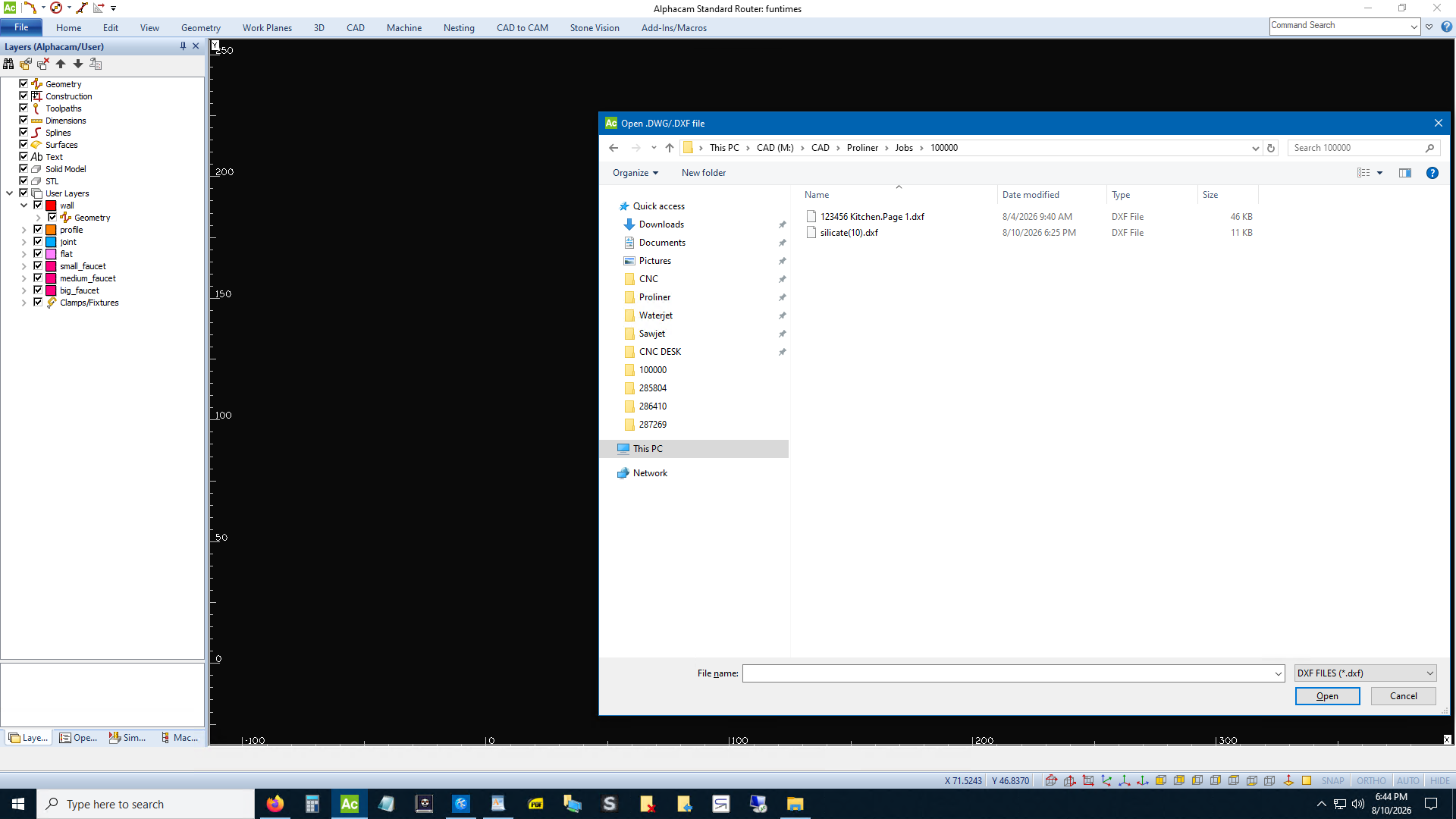
Import the DXF you downloaded from silicatewastes. You have to import the colors file first because your AlphaCAM file with the colors actually stores what they look like. The DXF from silicatewastes just says layer = "FLAT". If you just import the DXF it will all be green.
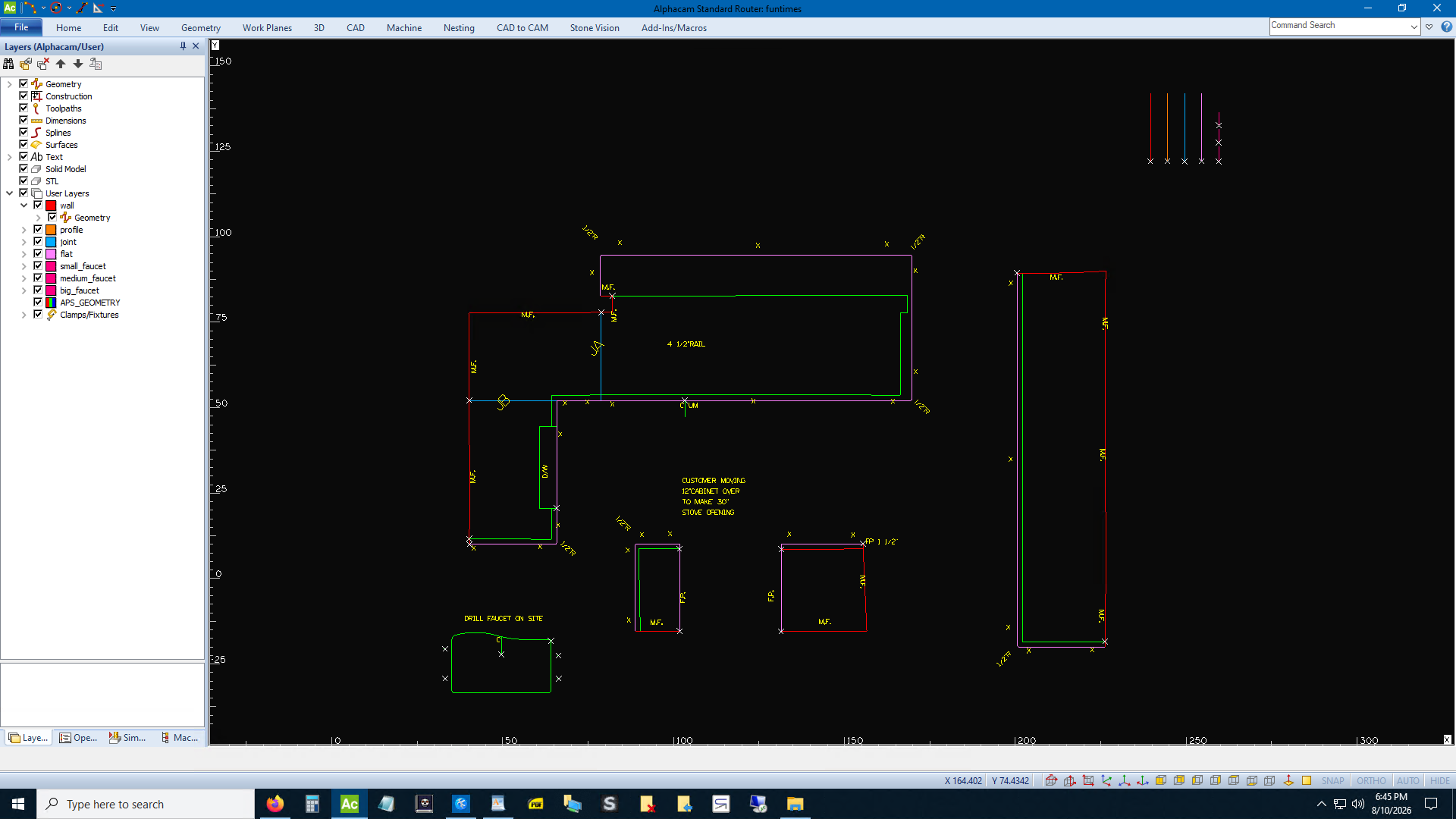
It even renames all your "JOINT" texts to "JA", "JB", etc. If your templaters draw a 1 1/2" faucet but write 1 3/8" you'll know because silicatewastes checks the diameter of all circles and labels them 'S', 'M', or 'B' if they're 1 1⁄4", 1 3⁄8", or 1 1⁄2". Also the faucet layers are set.
Let's compare. Wow this is way easier. And since the joints are now separate from the green mess breaking apart pieces is easier.
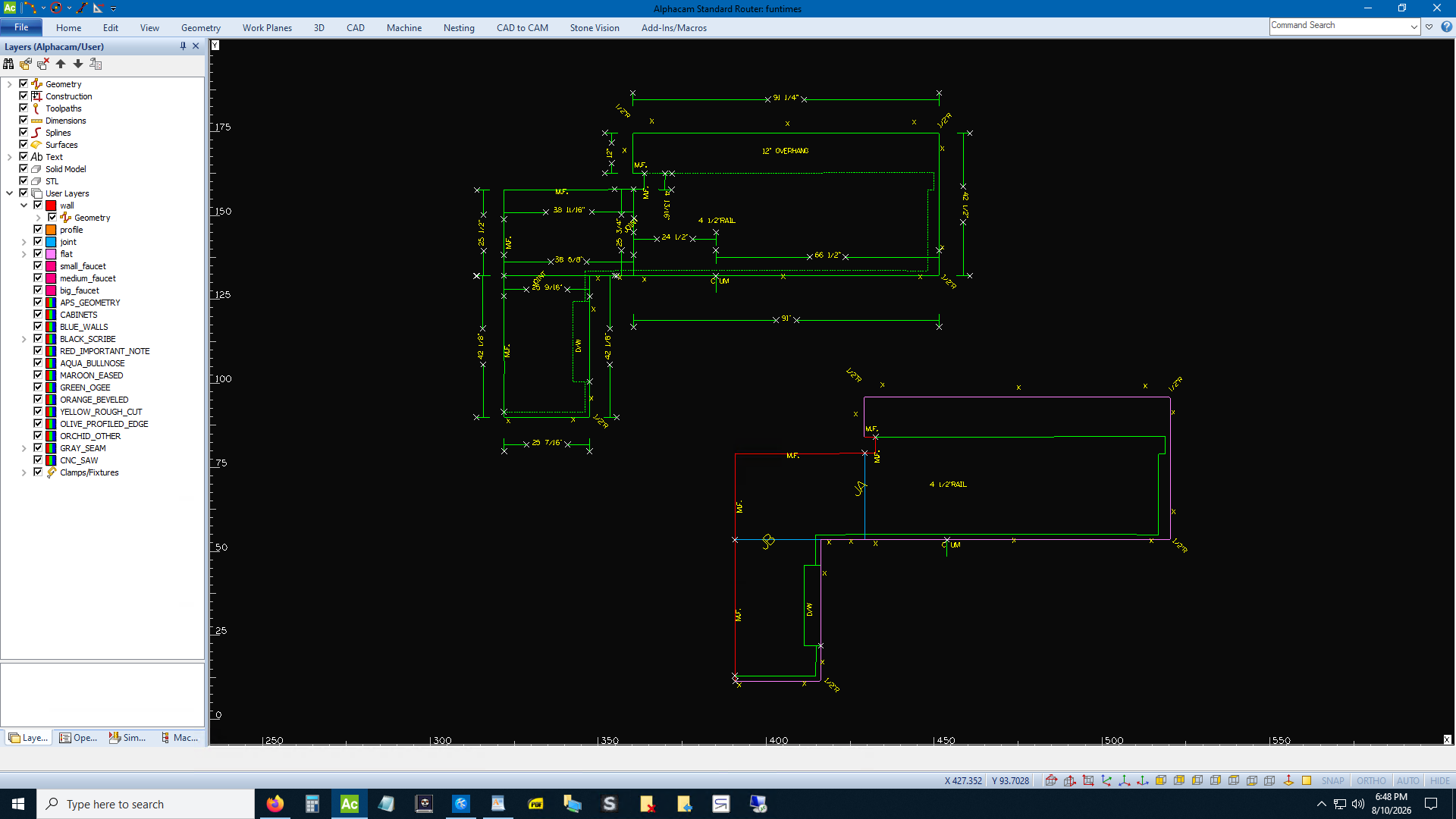
And layers are great because you can use AlphCAM's auto-apply feature.
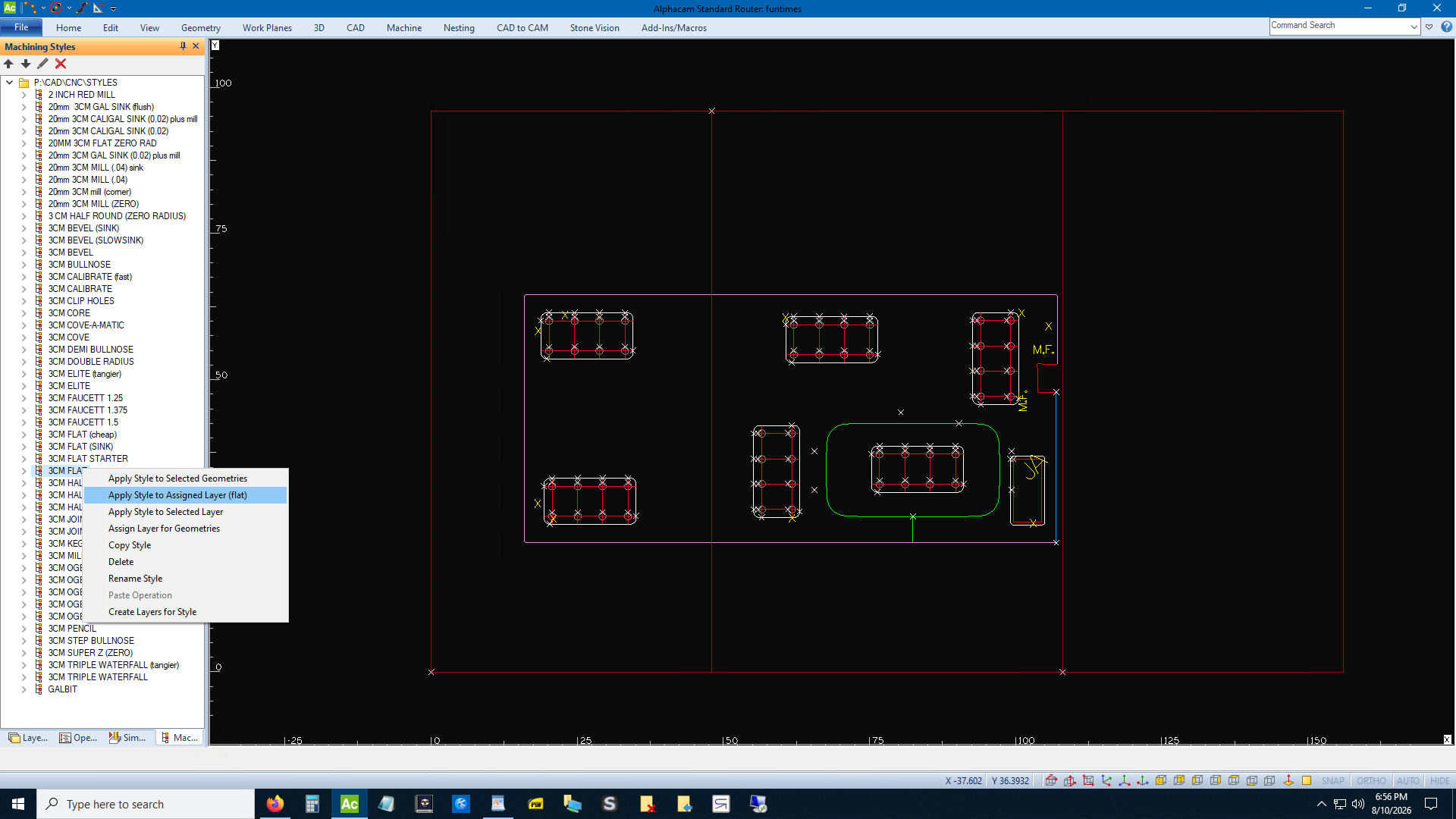
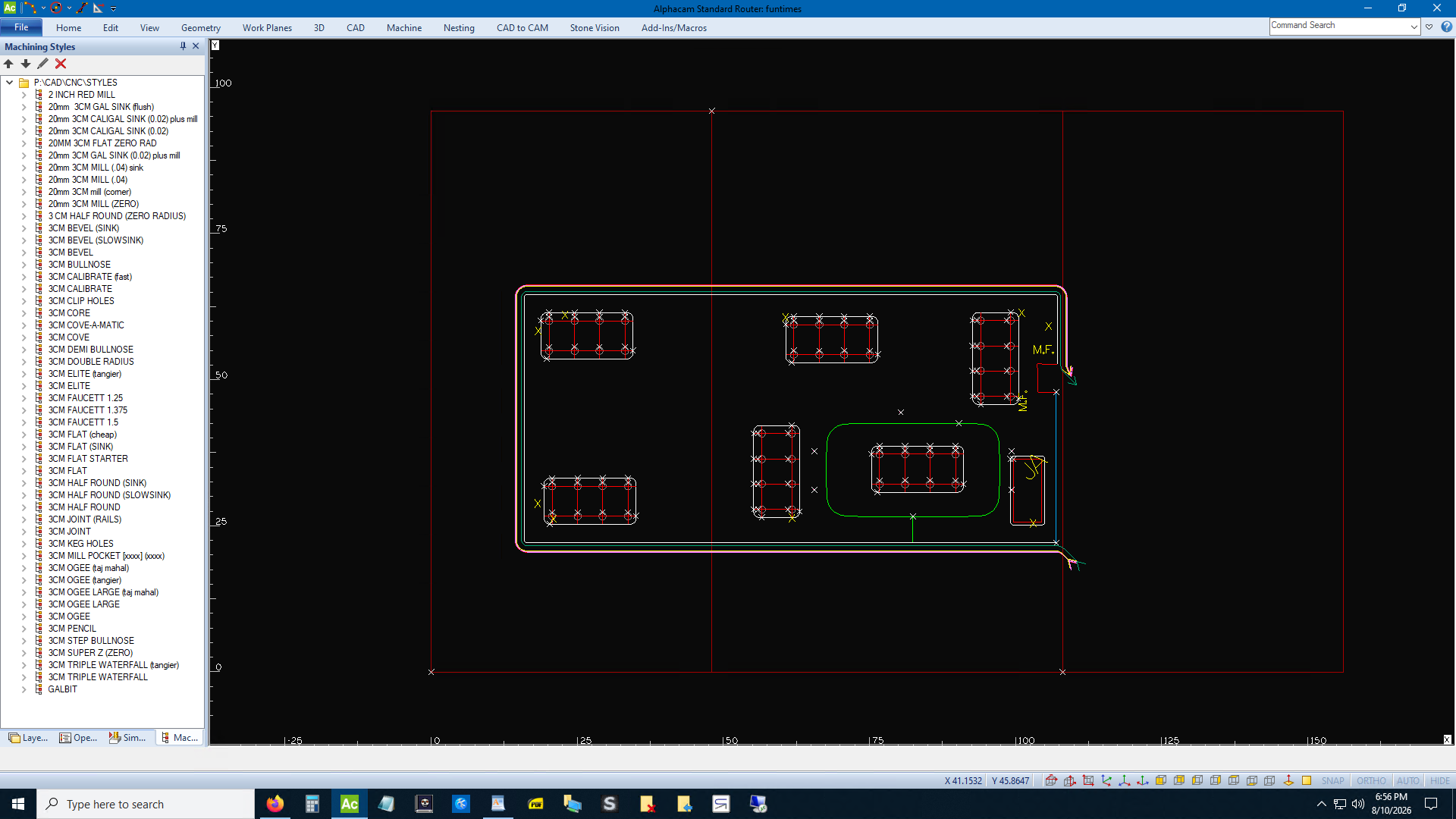
If you're a power-user click this link: Advanced
If you can't read an image right click and Open Image in New Tab.