How to use:
The FILTER Button
The BLANCO Button
The UPLOAD Button
General Site Info
Weaselware:
Instructions
Advanced
Life advice:
Passwords
How to do:
The Platner Edge
A Drainboard
coming soon:
One weird trick to keep pieces from moving while milling sinks.
Suction cup companies hate it!
Also, TOP 10 ways to make banana bread from dried up old banana peels.
#8 will BLOW YOUR MIND
Okay a customer wants a drainboard carved into the face of their countertop for some reason. Are they practical? Yeah. Sure. I don't have a drainboard job in front me so let's just pretend this job gets one. You run it normal facedown. Then pull it all off the machine.
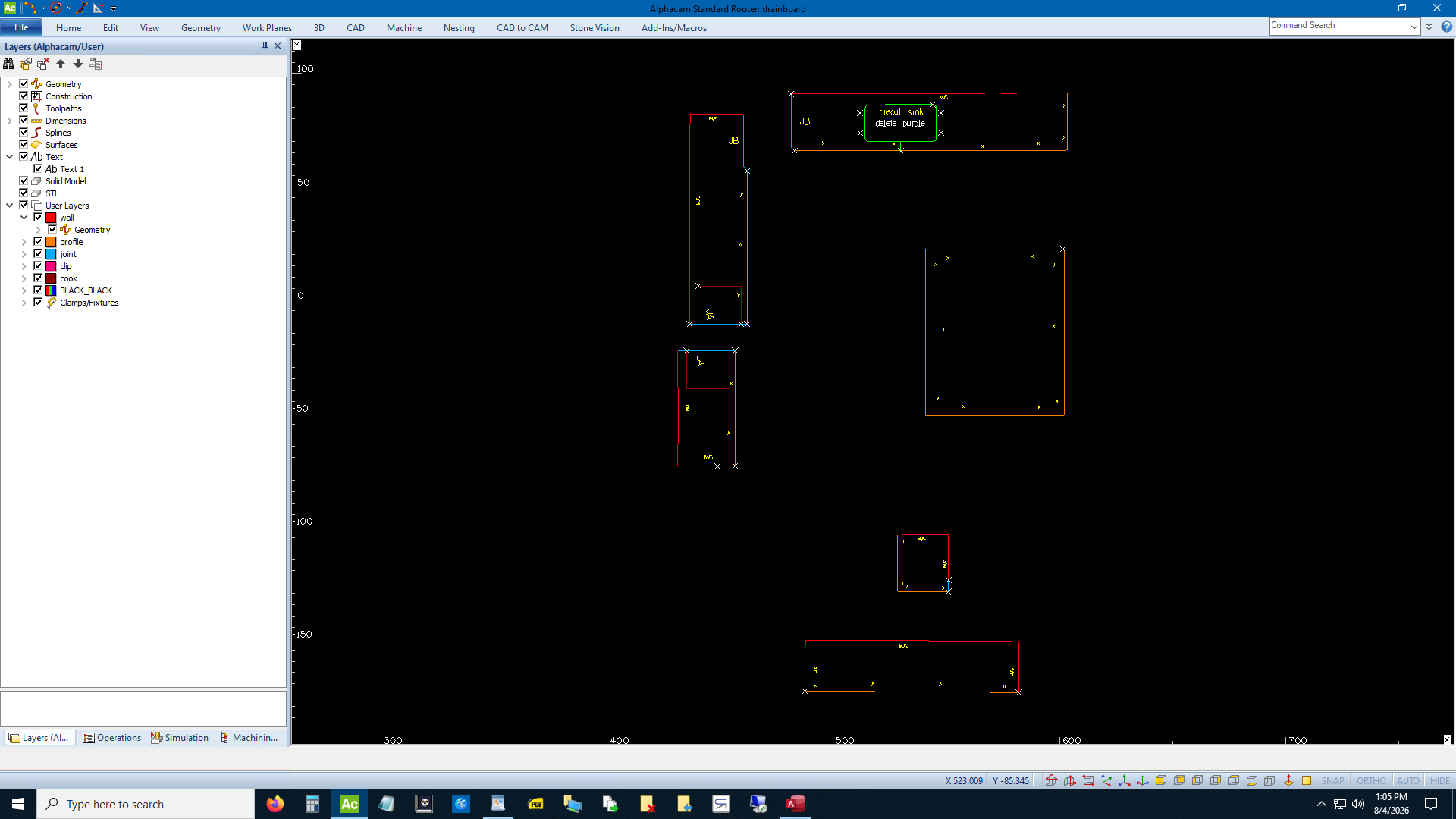
Okay, flip that sink piece faceup. I don't remember what the dimensions on these things usually are. Let's just say they want it to the left of the sink. 16" wide for the cavity and the lines are 14". 14" tall. 2" radii. Let's say the cavity is supposed to be 1/8" deep on the left and 5/8" deep on the right. (So a slope of 1/4" from side to side. Then the lines should be 1/8" deep into the cavity.
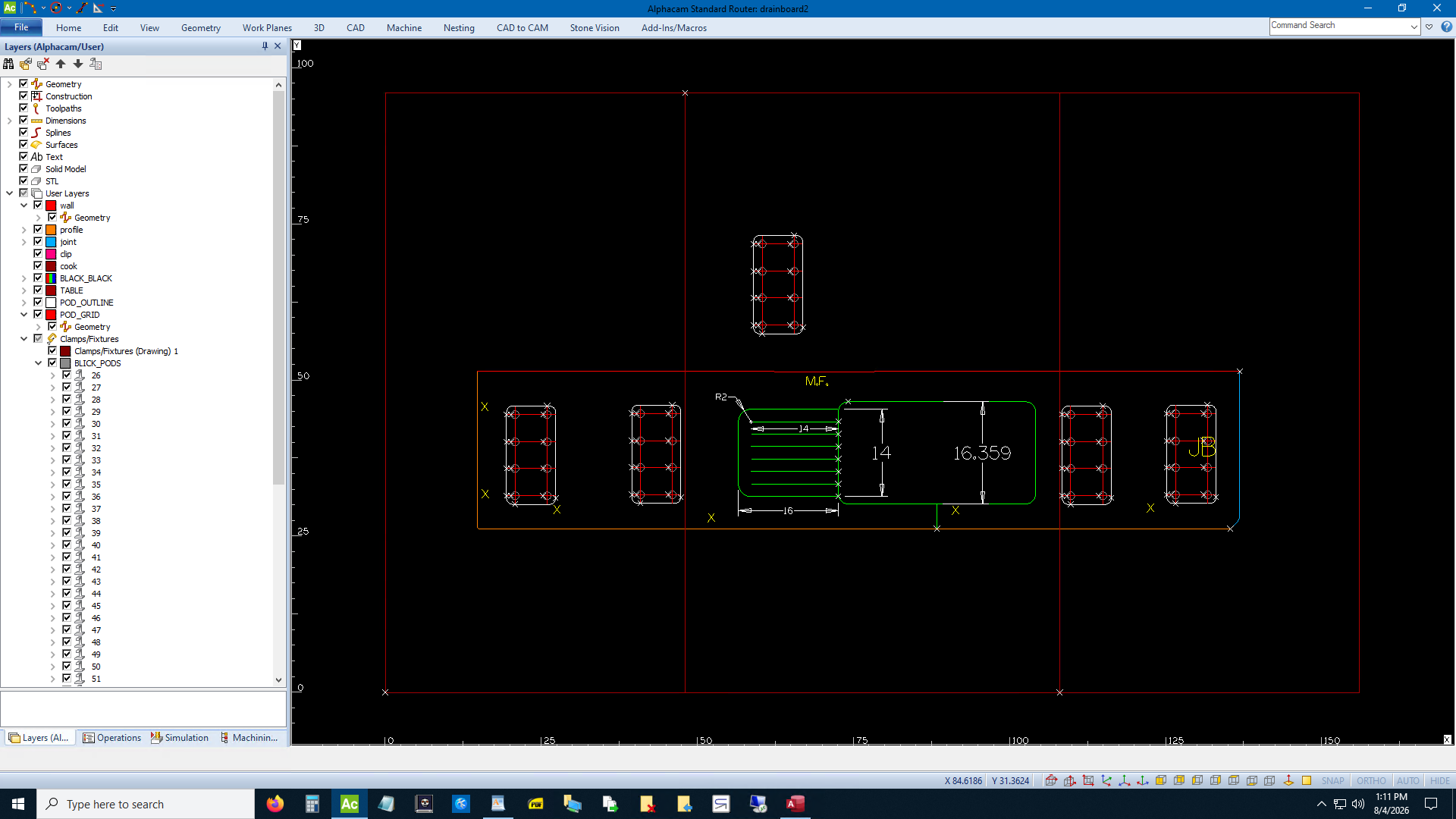
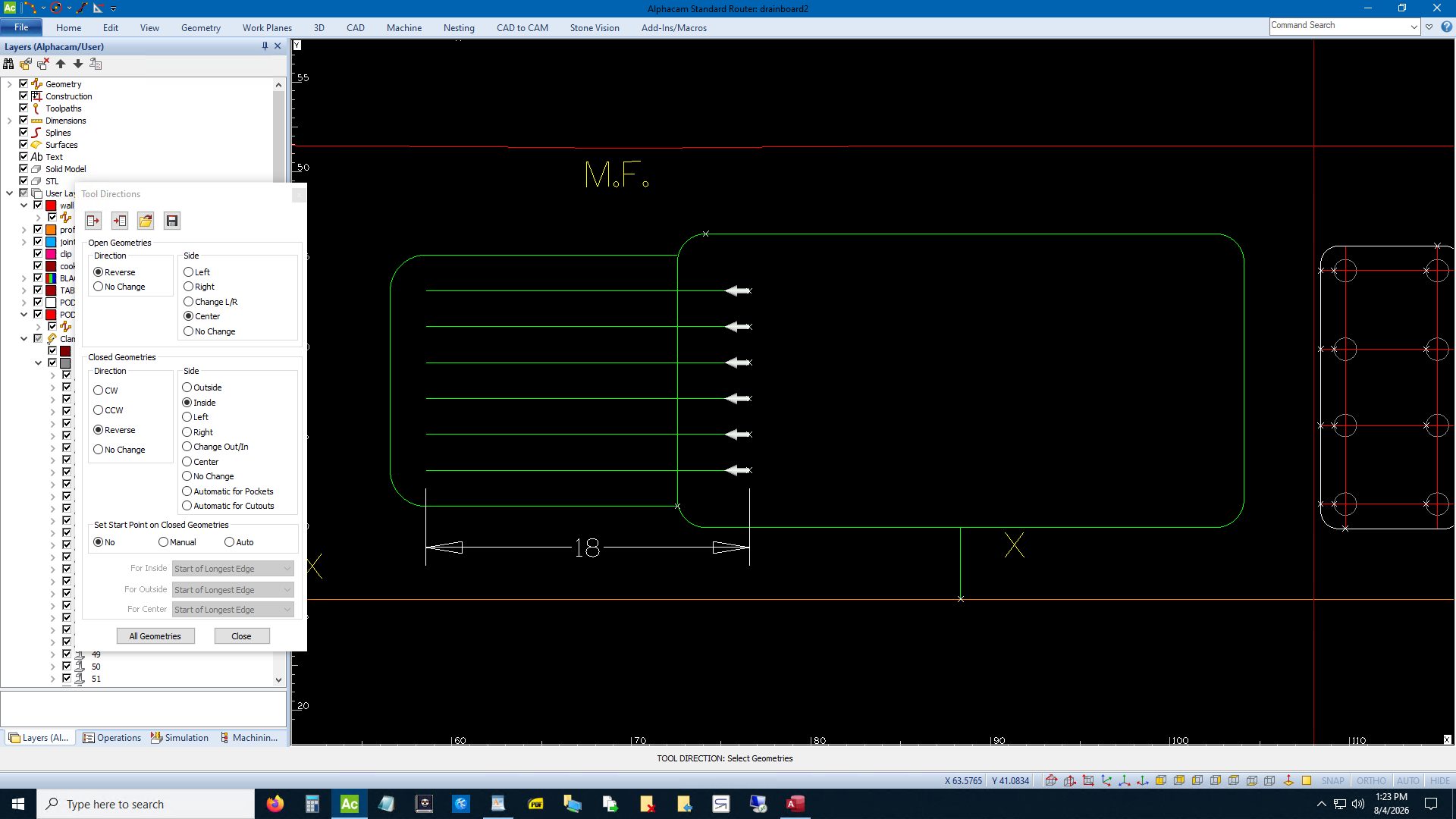
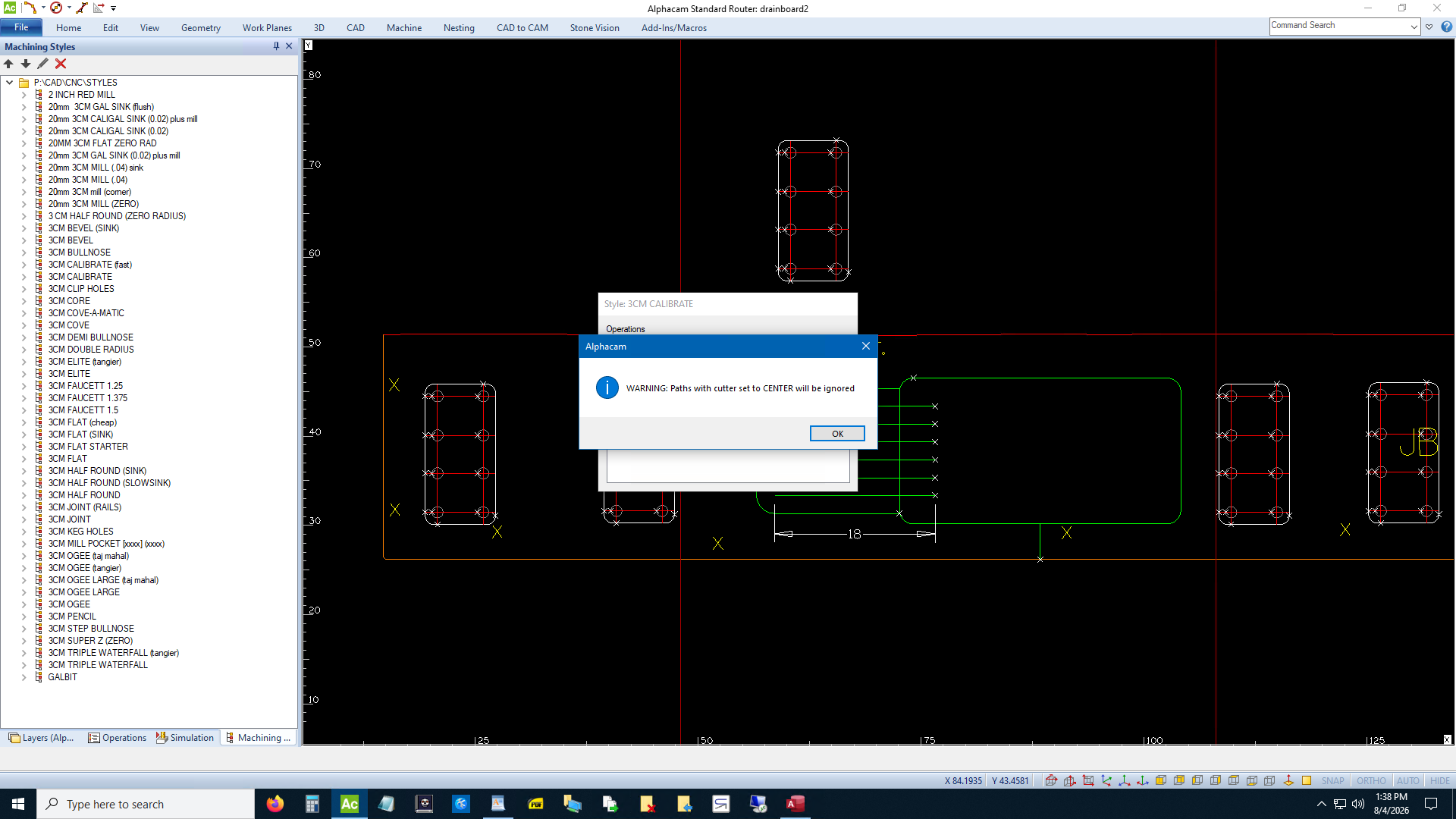
We'll use the same geometry lines for the cavity and the drainboard lines. This works because the calibration tool is 4" in diameter and the outer lines are 2" from the top and bottom of the cavity. Also the lines stop 2" from the left of the cavity and the radii are 2". Just extend the line to the right 4" so you don't have to plunge the tool into the stone like an idiot. Set your tool directions. Do center of the line.
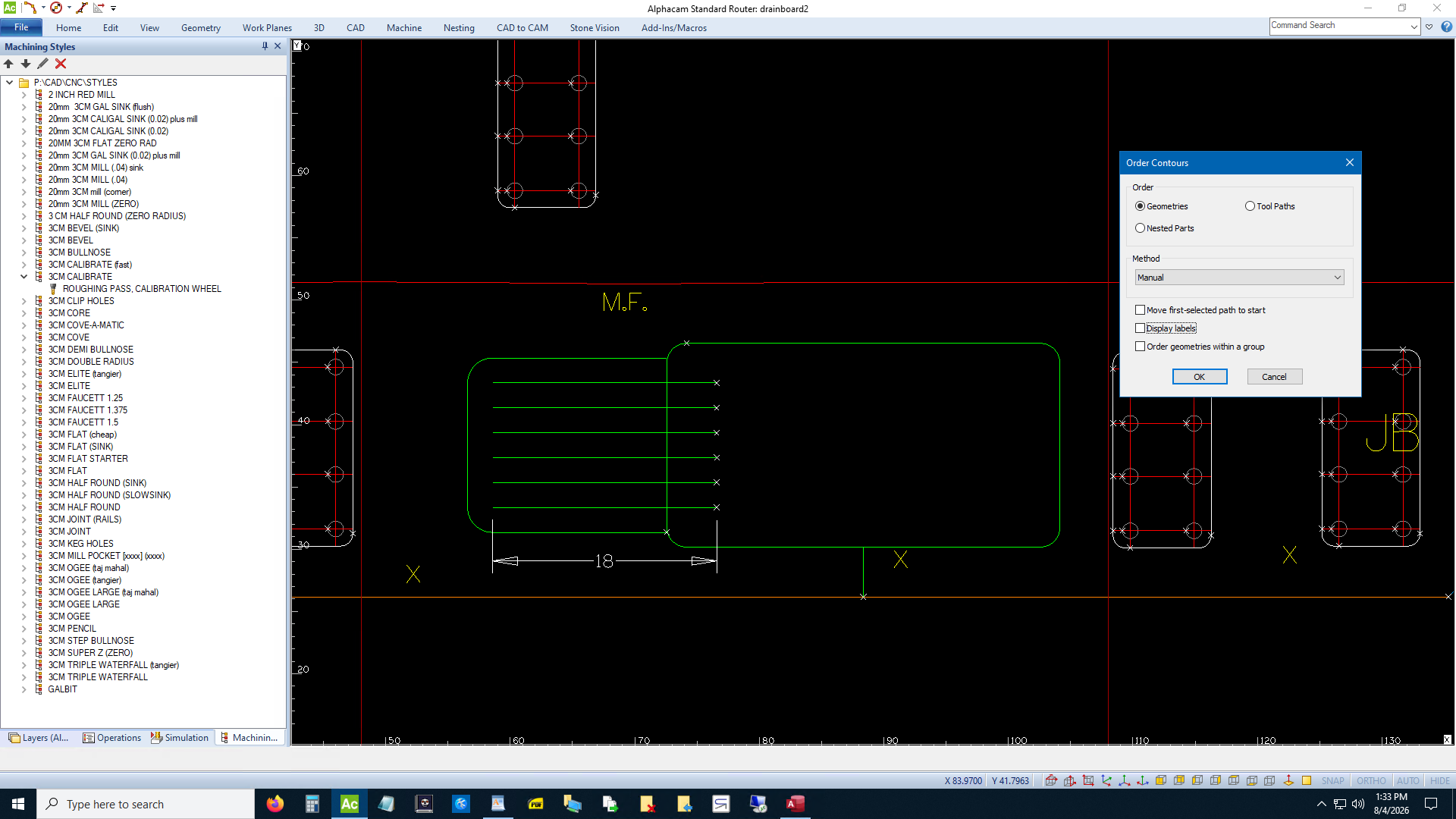
I like to order the lines themselves bottom to top so I can just tool them all at once and I'll know what order they'll go. Whatever. It's under edit, you'll find it.
I suppose you could select the calibrator from the machine menu like I did in the platner tutorial. Who knows, I never do. I just use the style with the calibrator on it. Don't worry about the heights yet. I don't know what this error message means. To me it's just a warning that I did a toolpath on center. But why does it say it's ignored if it actually applies the toolpaths? Who knows. Also I only get that message once per AlphaCAM session. It will never warn me again. I like to keep that warning active so every time I get it I restart AlphaCAM. If you know how to keep that warning active without restarting AlphaCAM I'll put up a webpage honoring your achievement. Unless I know you and I don't like you.
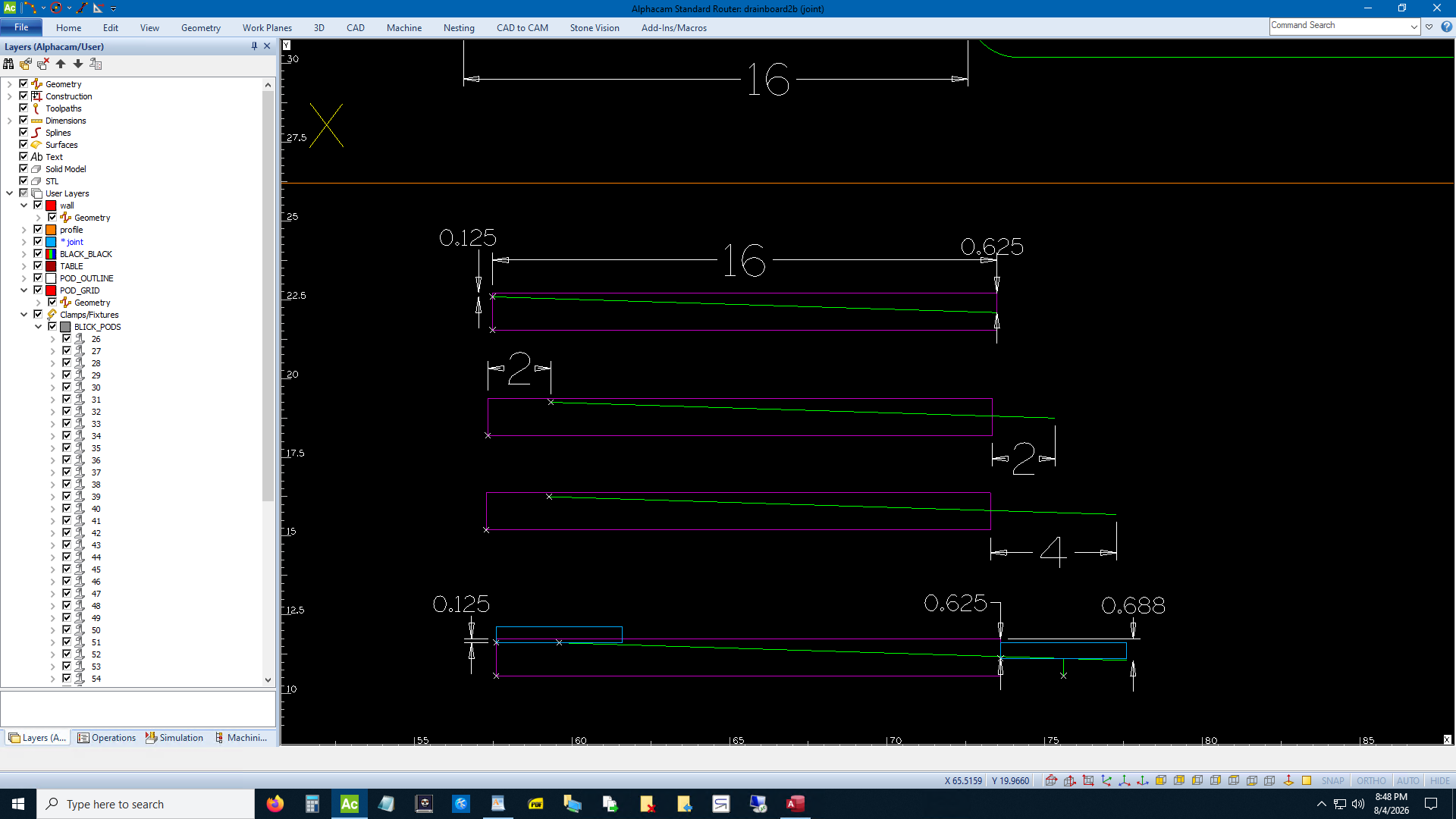
Alright, now you either blow the dust off your 10th grade Trigonomety book or you draw your slope and cheat with CAD. Our cavity is 16" wide and the tool should be 1/8" into the stone at the left and 5/8" into the stone on the right. Draw that and shift that slope 2" to the right. Our tool is 4" wide so when the center of it is on that line the left side of the tool will be at the correct depth. But we extended the actual lines above 4", not 2". So extend the right side 4" past the right side of the purple box. You can see I drew a 4" wide calibrator to illustrate. The left side of the tool will go from 5/8" to 1/8" deep. But our "zero" is actually 1.181 or stone thickness or whatever. So subtract from 1.181 and we go right to left from 0.493 to 1.056.
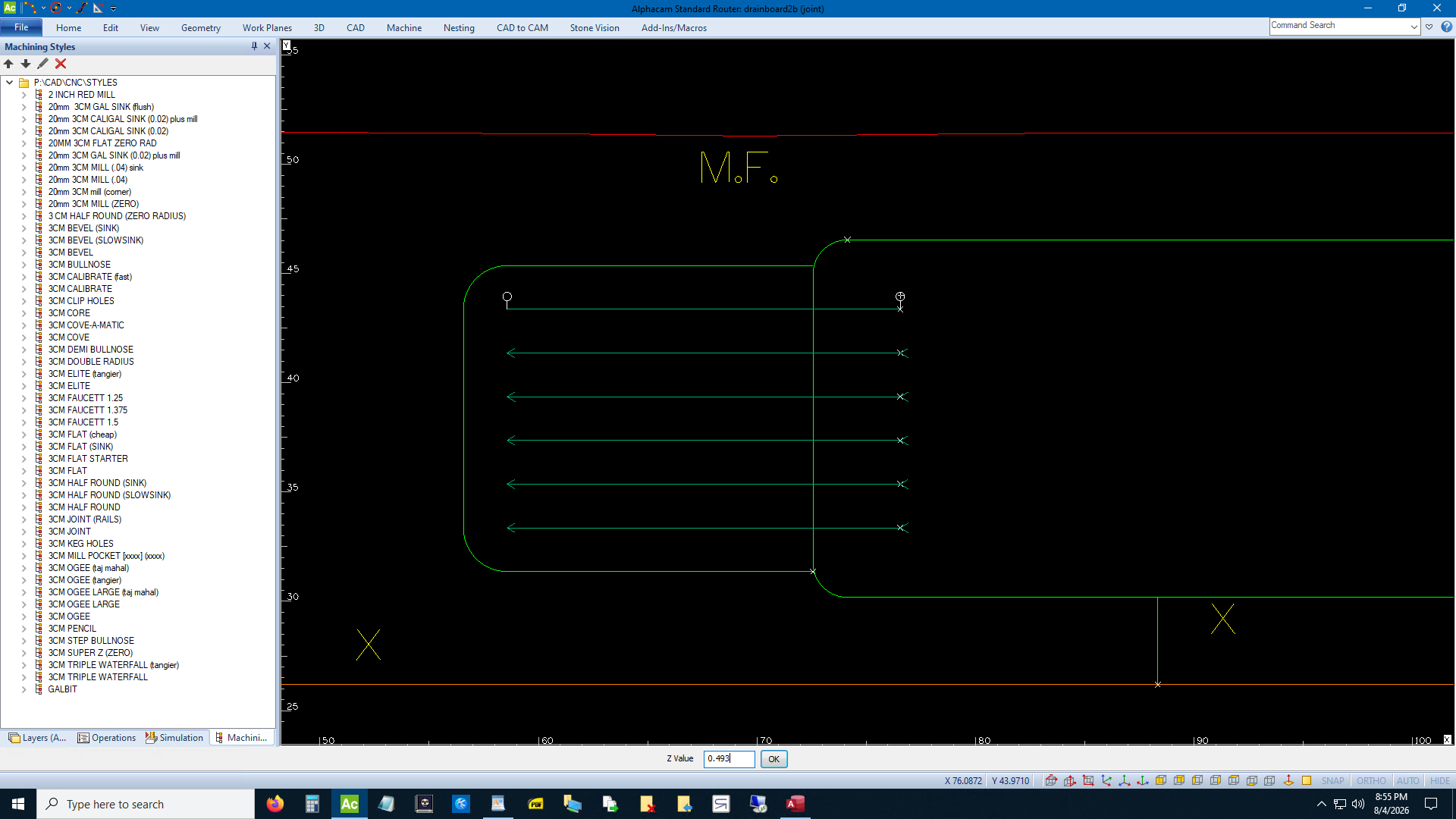
So go to Machine -> Edit Machining -> Edit Z Point by Point. Select your toolpaths one by one and enter 0.493 into the circles on the right and 1.056 into the circles on the left. God damn that's tedious. If you do these every day then probably you can copy toolpaths or something. Whatever.
Save it. You're done with this part. See the platner tutorial to see how to set material layers. I don't know how to put a sink hole into a material layer so I just trim the whole piece to the right side of the drainboard. Whatever.
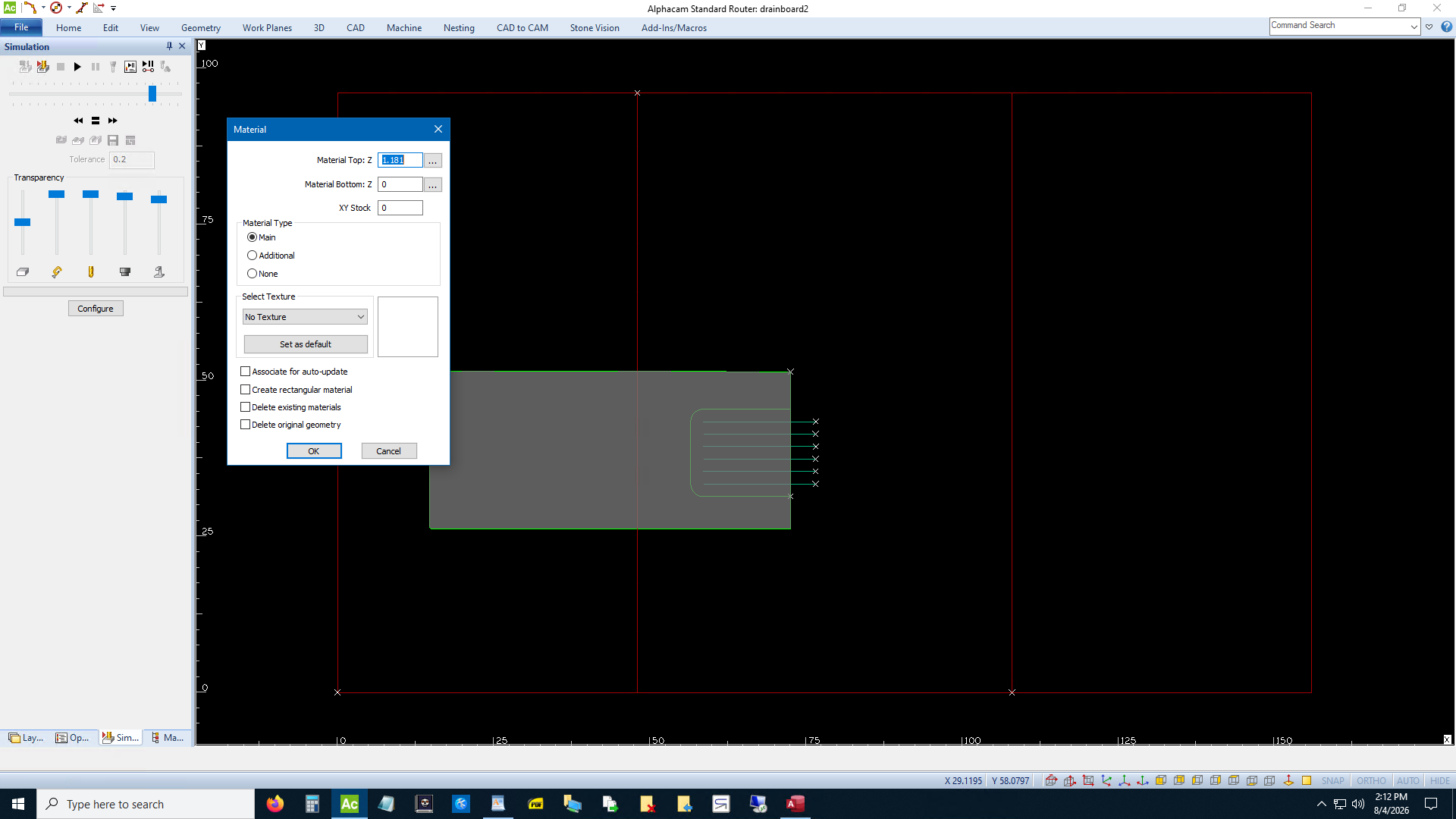
Take a gander at it.
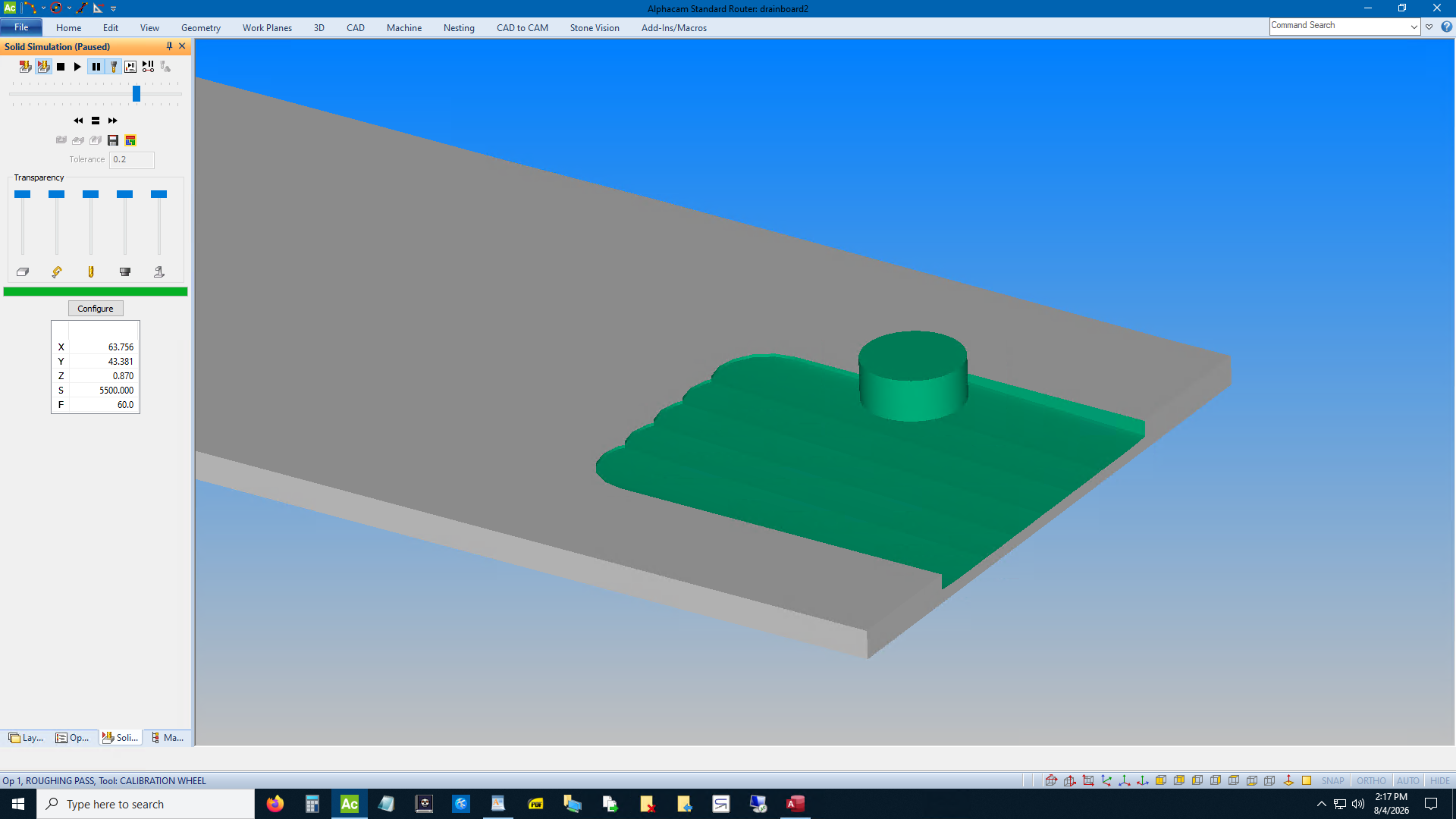
You don't want that choppy left side. You didn't save with your material layers did you? I hope not. Go back to your real program. However you want to do this next part. I'm just extending the main outer line by 5 so I can see it after it overlaps the other lines. Offset it in 2". Put tool path on center as always.
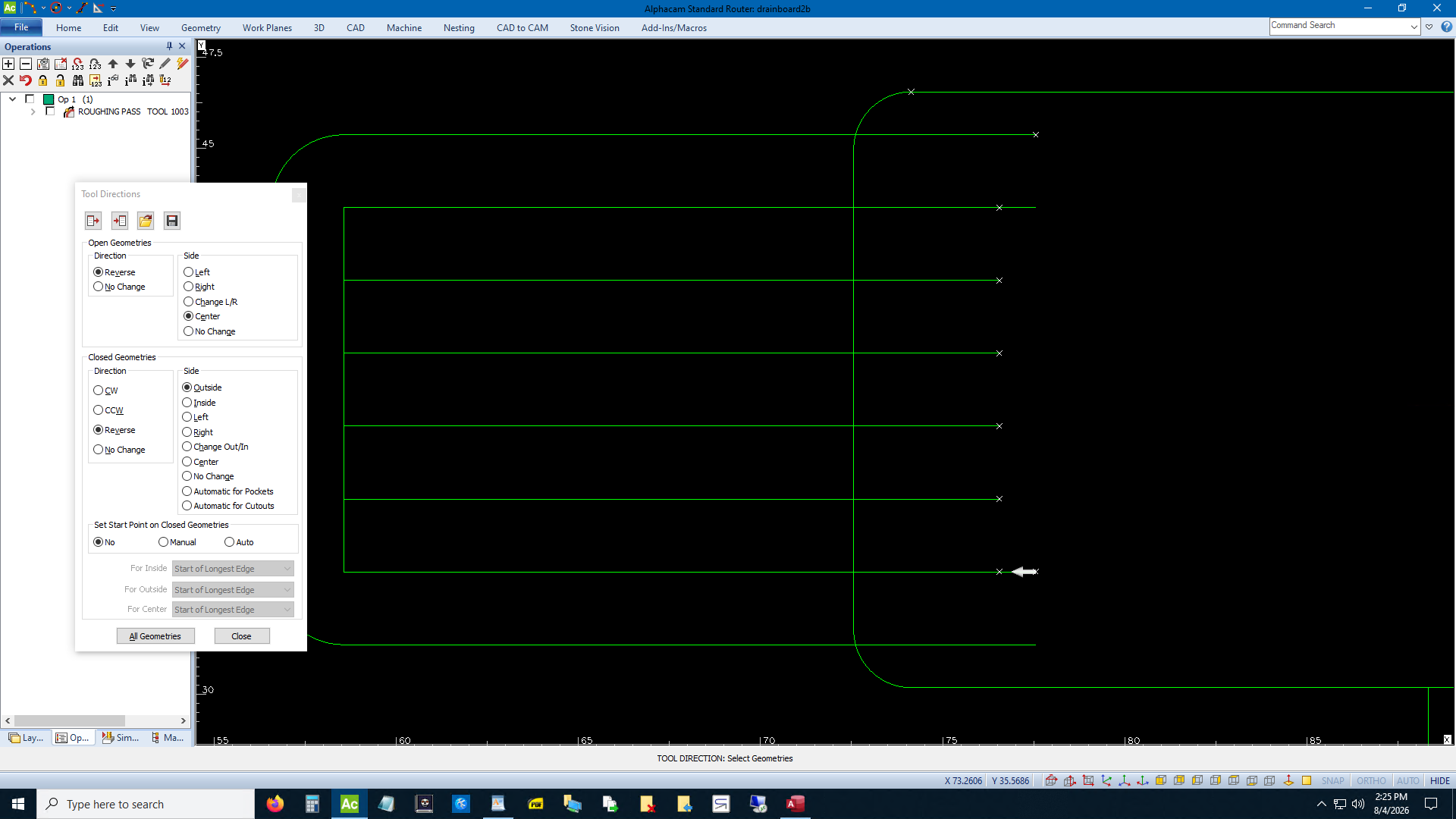
I just put the regular calibrator style on it again. Machine -> Edit Machining and edit the Final Depth to 1.056.
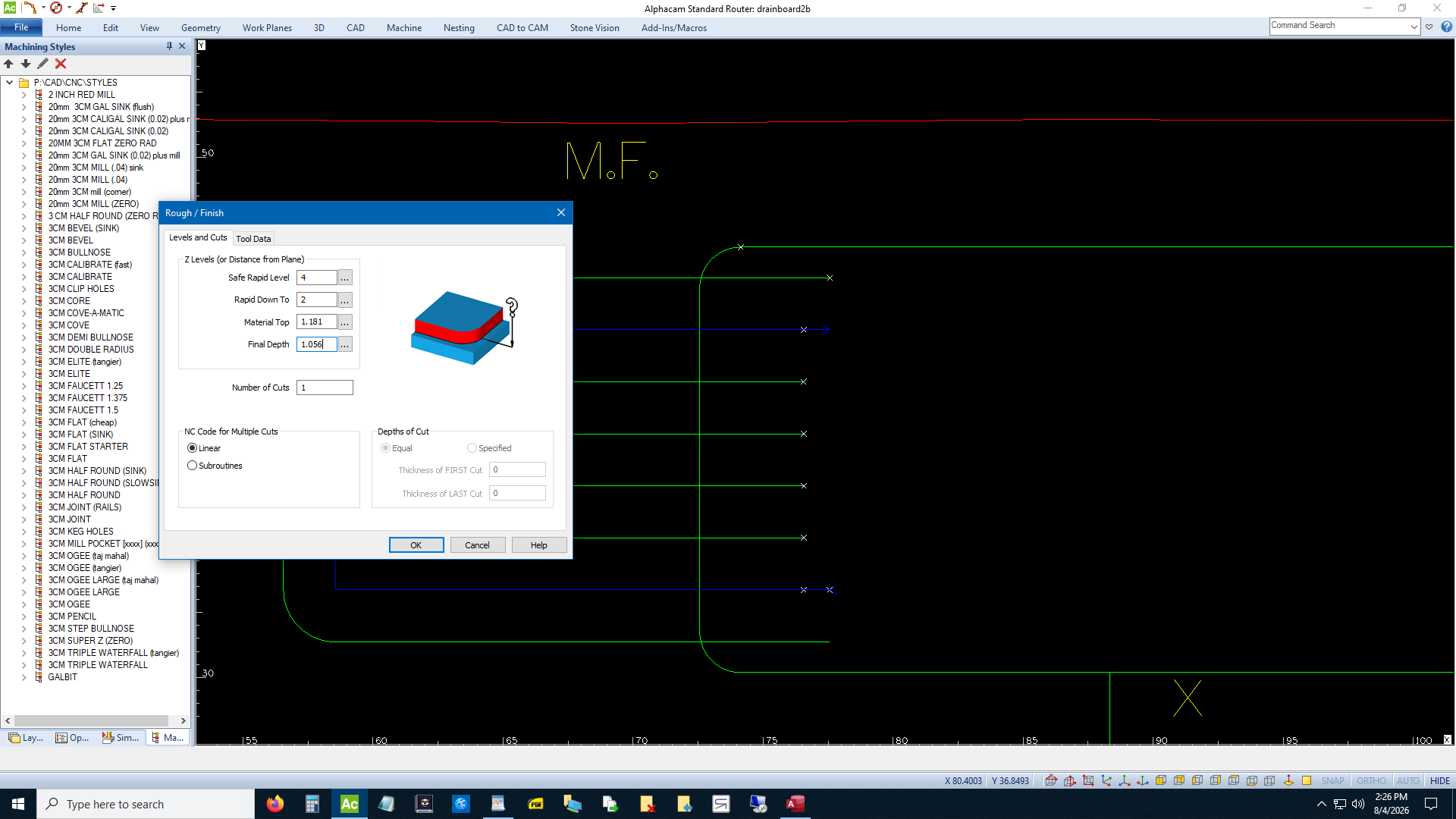
Simulate that shit.
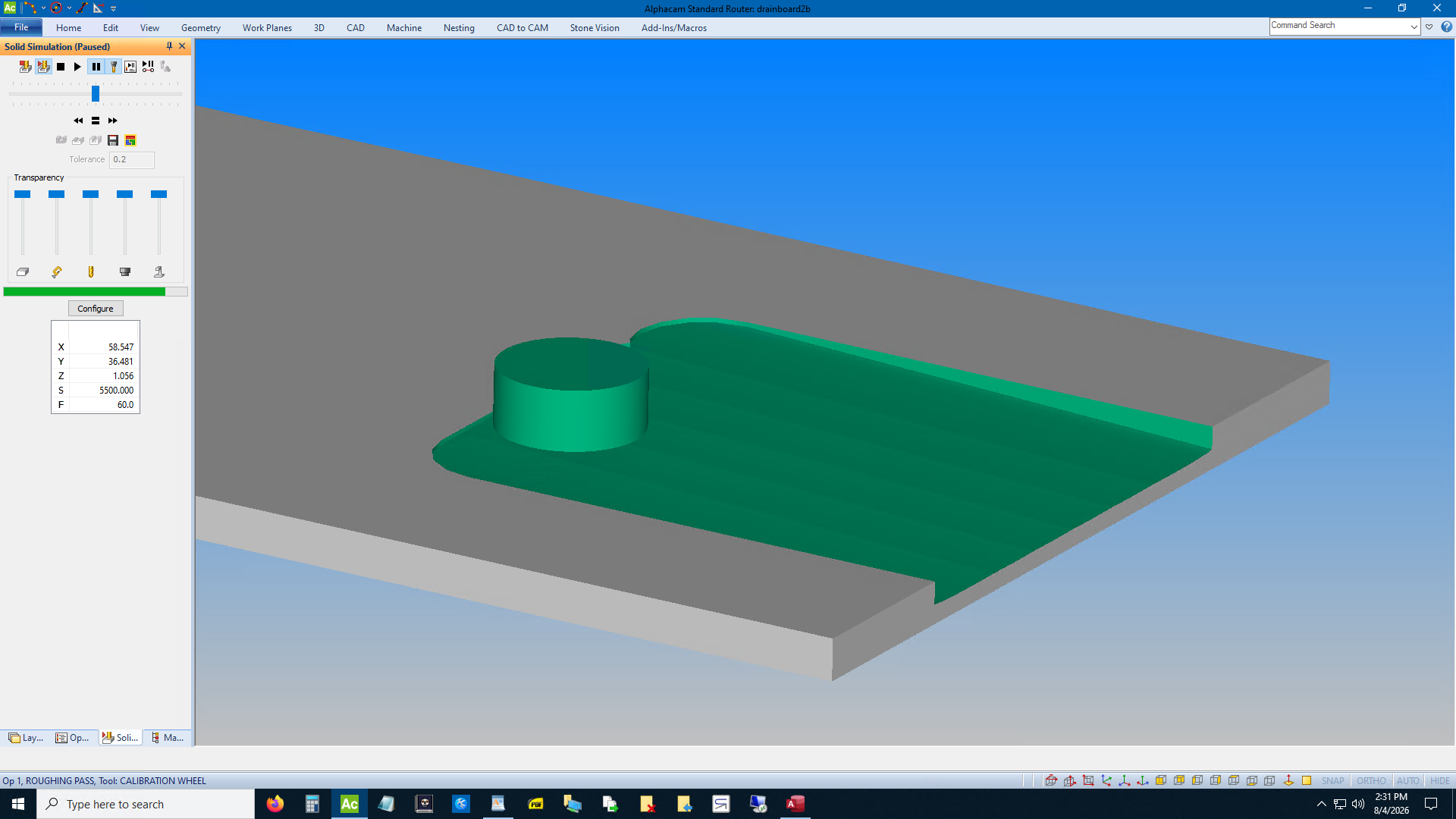
Alright now select your ball end tool. Maybe you have a style for it. Or select it from Machine -> Select Tool. See how to do that in the platner tutorial. Then pick Rough or Finish and do something like this. I don't know if the RPM and feedrate are right and I don't care. Look it up if you're feeling motivated.
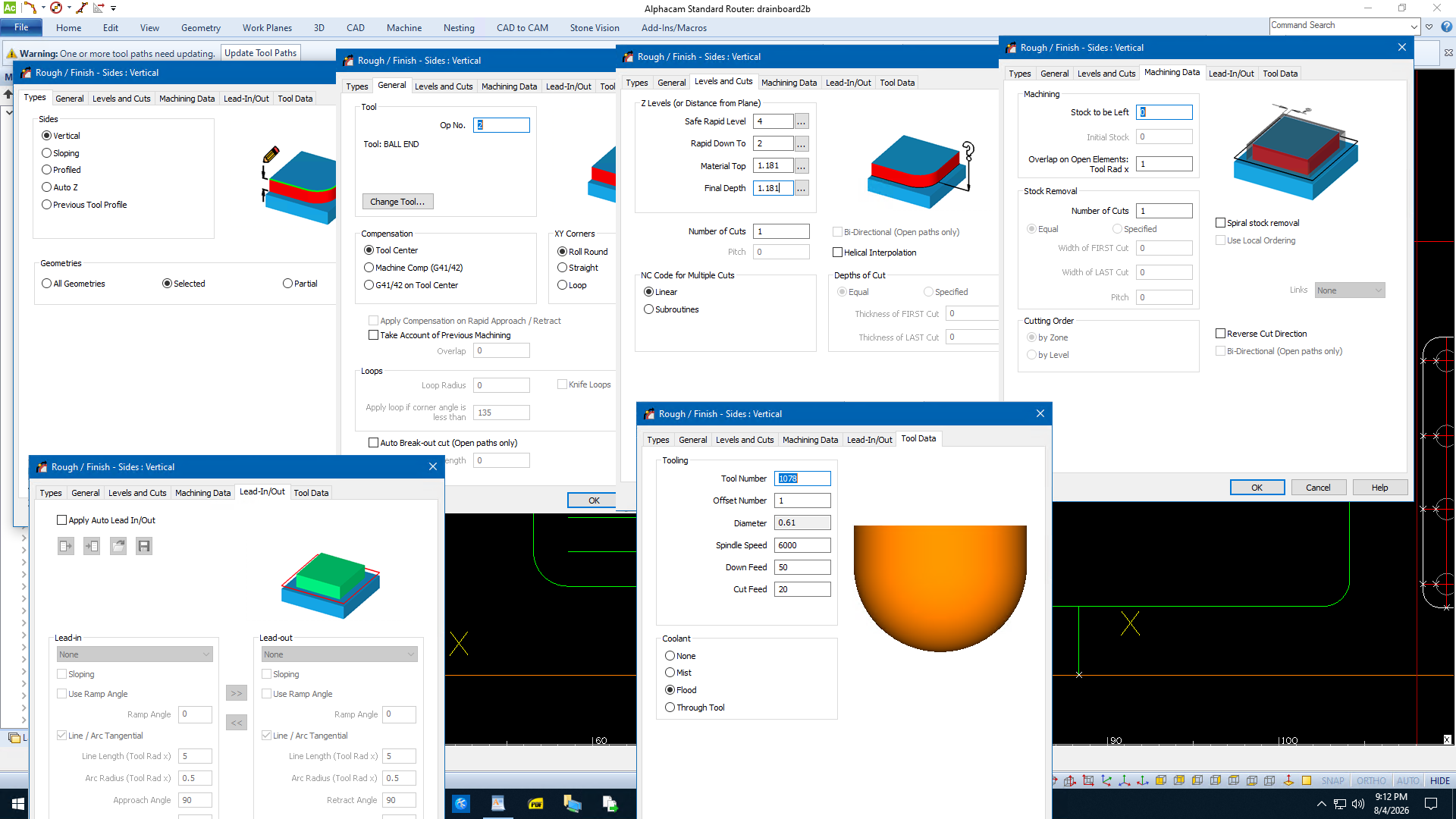
Whew. Alright, now do that Z Point by Point shit again but this time do it 1/8" lower on both sides than you did last time.
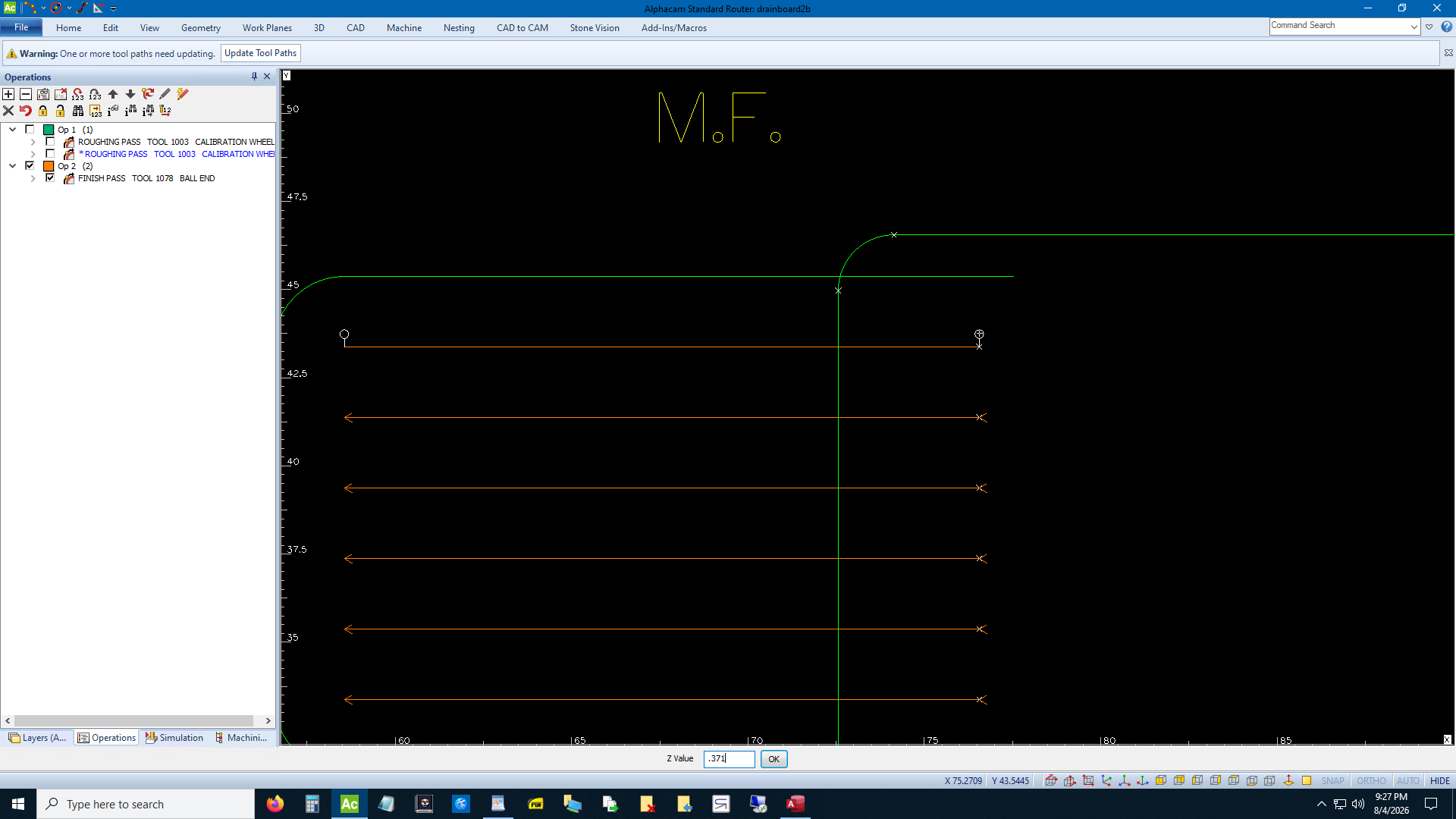
Simulate it again. Whoopdee doo, it's gorgeous.
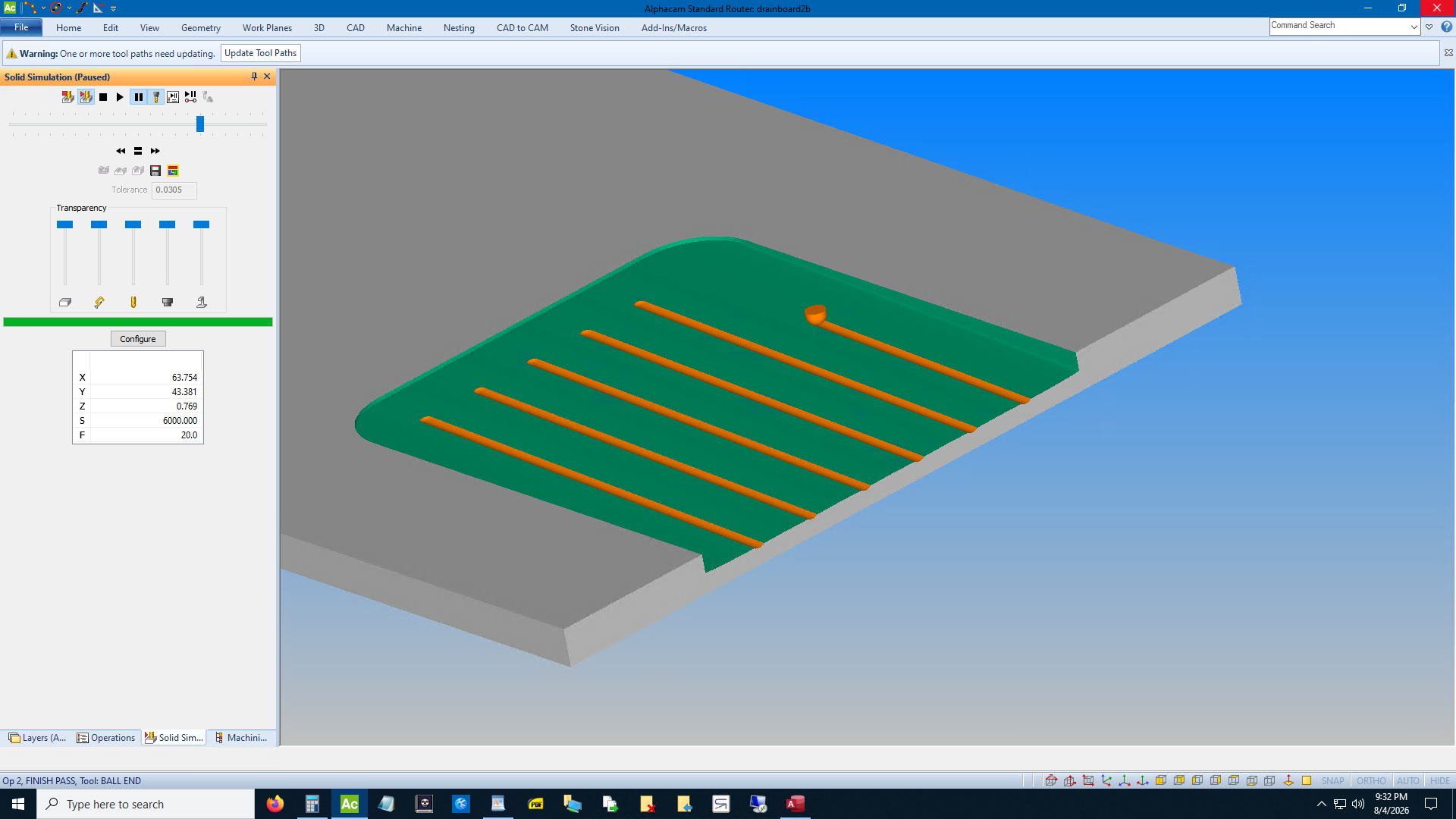
If you have a 2nd, finer ball end tool just run it with the same program you ran the rough ball end tool with and lower it at the machine 0.02 or something. Whatever. www.silicatewastes.com
If you can't read an image right click and Open Image in New Tab.